

Available placeholders
The following placeholder types are available:
These placeholders help personalize agreements and ensure the final document reflects real user information without modifying the template text manually.
Custom placeholders
In addition to the built-in fields, you can define your own placeholders with custom keys and values. Each template supports up to 100 custom placeholders. To learn how to pass custom placeholder values from your integration, see the developer guide.How placeholders work
You can drag any placeholder from the list into the template editor. When dropped, it is inserted as a token inside your text. The same placeholder type can be used multiple times throughout the legal document. For custom placeholders, you can add new entries, edit existing ones, or remove ones you no longer need. Each template supports up to 100 custom placeholders.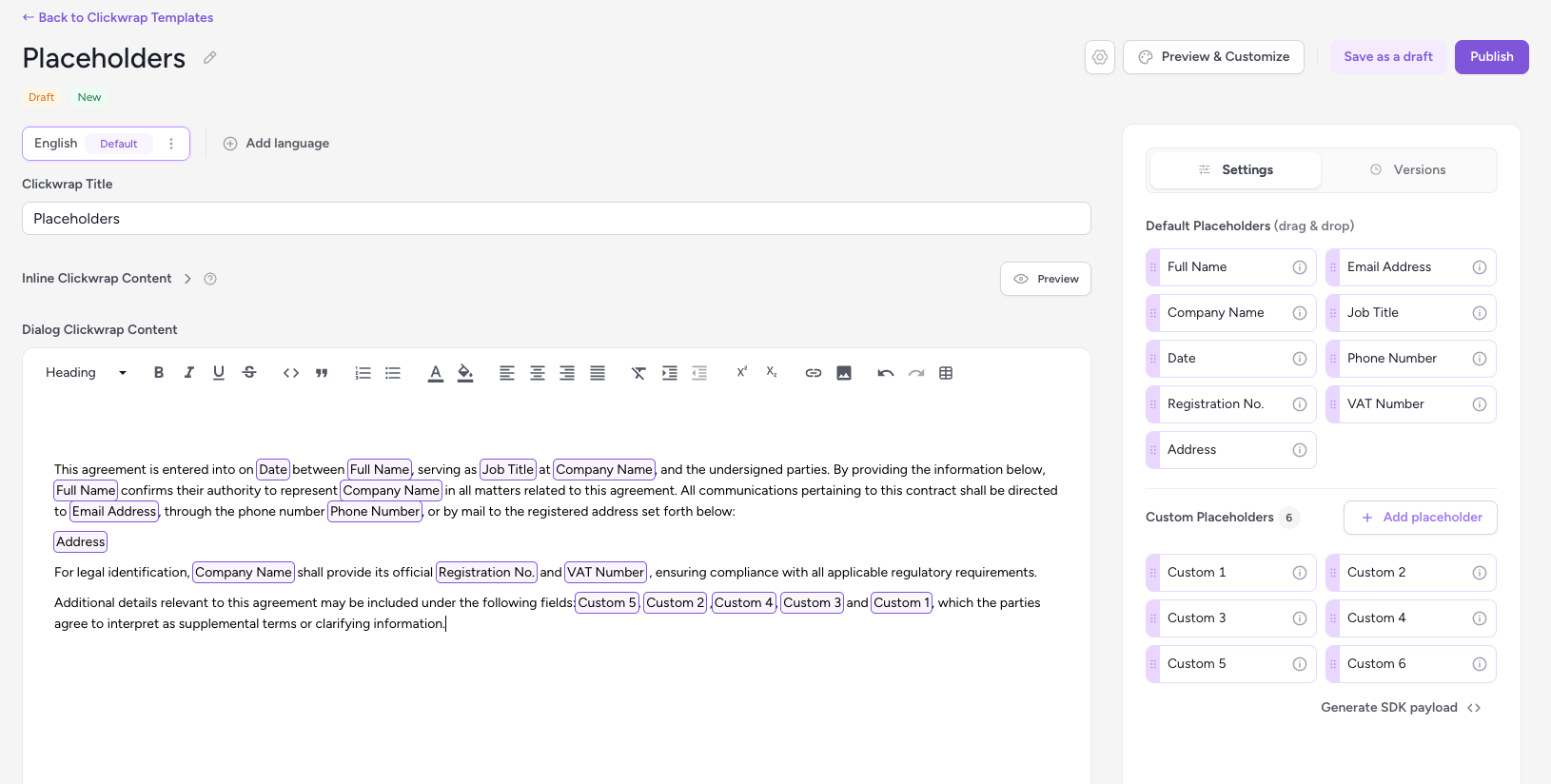
Template editor with placeholders
1
Your system provides values
When triggering a clickwrap session, your integration passes values for relevant placeholders.
2
ClickTerm replaces tokens
ClickTerm automatically replaces placeholder tokens with the actual values.
3
End user sees the final document
The rendered document displays all placeholders filled in with real data.
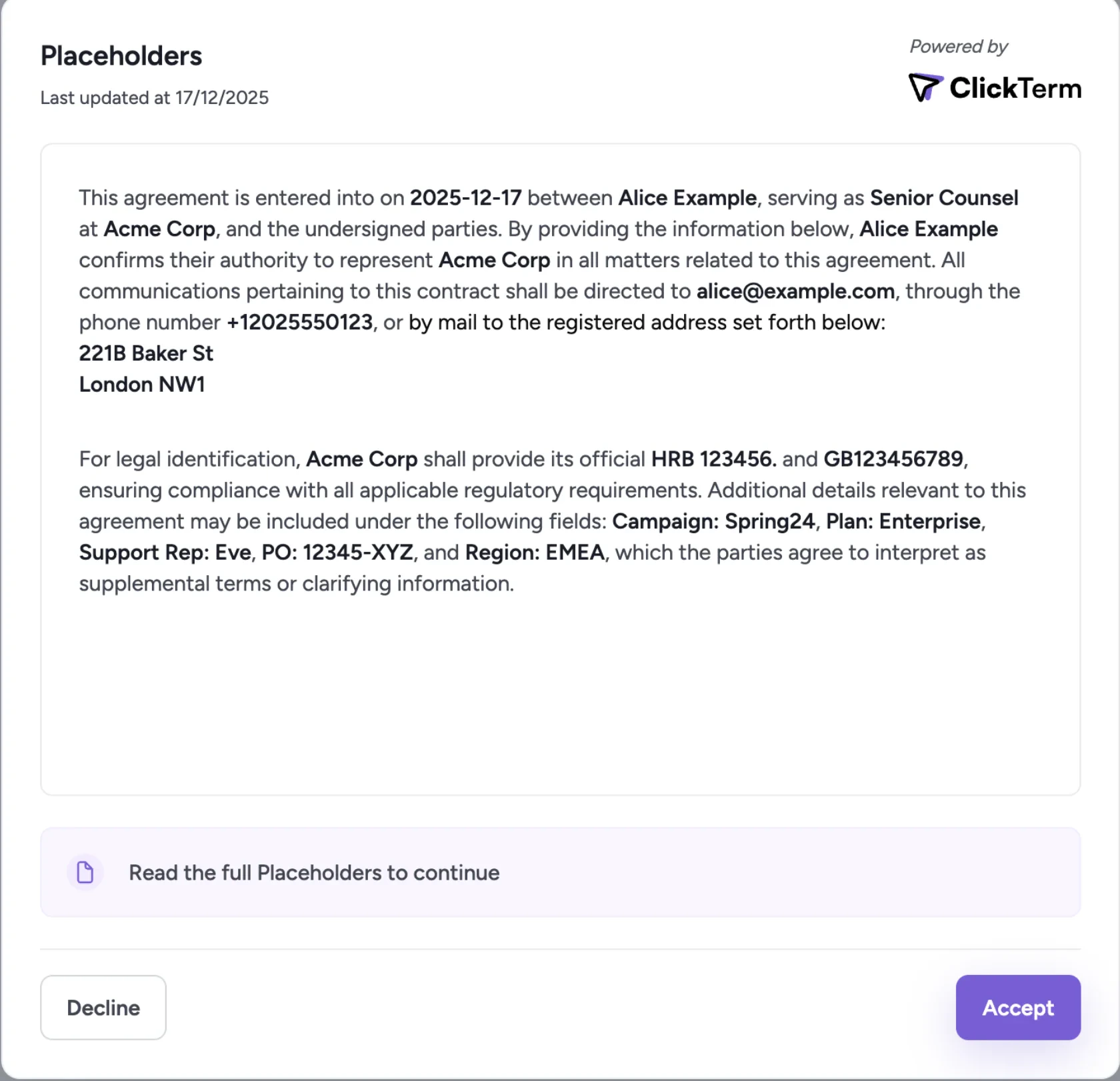
Rendered document with filled placeholders
If a placeholder value is not supplied, it will appear as a dash (—) in the rendered document.
When to use placeholders
Placeholders are useful when your document needs to include:- The user’s personal details
- Company or account information
- A date that is specific to the signing session
Related
Editing content
Learn how to use the template editor.
Developer guide: Placeholders
How to pass placeholder values from your integration.