

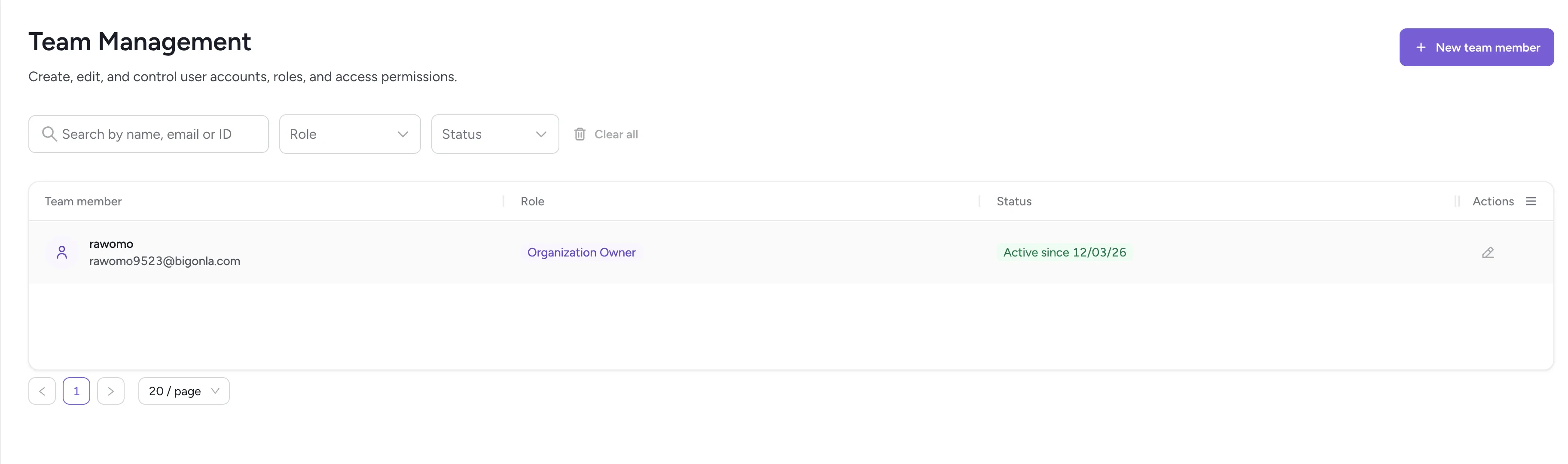
Team management page
The Organization Owner role is assigned to the person who created the workspace
but can be reassigned to another team member in the future.
Roles
There are two assignable roles when adding a new team member:Admin
Admins can manage all workspace settings, including:- Adding and removing team members
- Modifying roles
- Managing integrations
- Adjusting application settings
Member
Members can:- View and use applications
- Interact with templates, events, and dashboards
- Manage other team members
- Modify roles
- Change workspace-level settings (like organization details)
Adding a new team member
Click New team member to open the invitation dialog.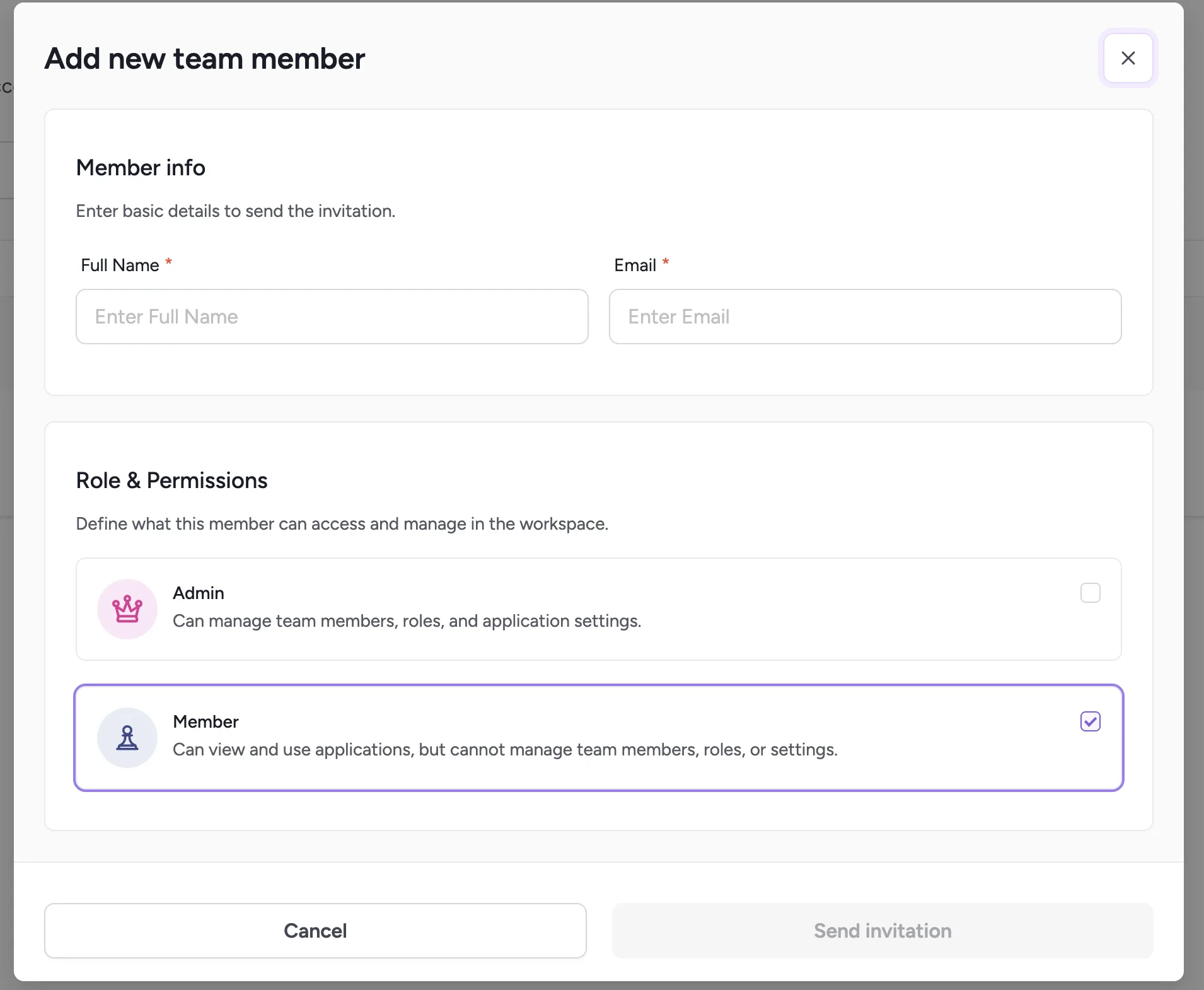
Add new team member dialog
1
Enter member info
Provide the person’s Full Name and Email address.
An invitation will be sent to this email.
2
Select role & permissions
Choose either Admin or Member.
Member statuses
Managing team members
Organization owners and admins can:- Change a member’s name and email
- Update their role
- Resend or cancel an invitation (if pending)
- Delete a team member
Related
Audit logs
Review system activity and API usage logs.
Plan & usage
View your subscription tier and usage metrics.