

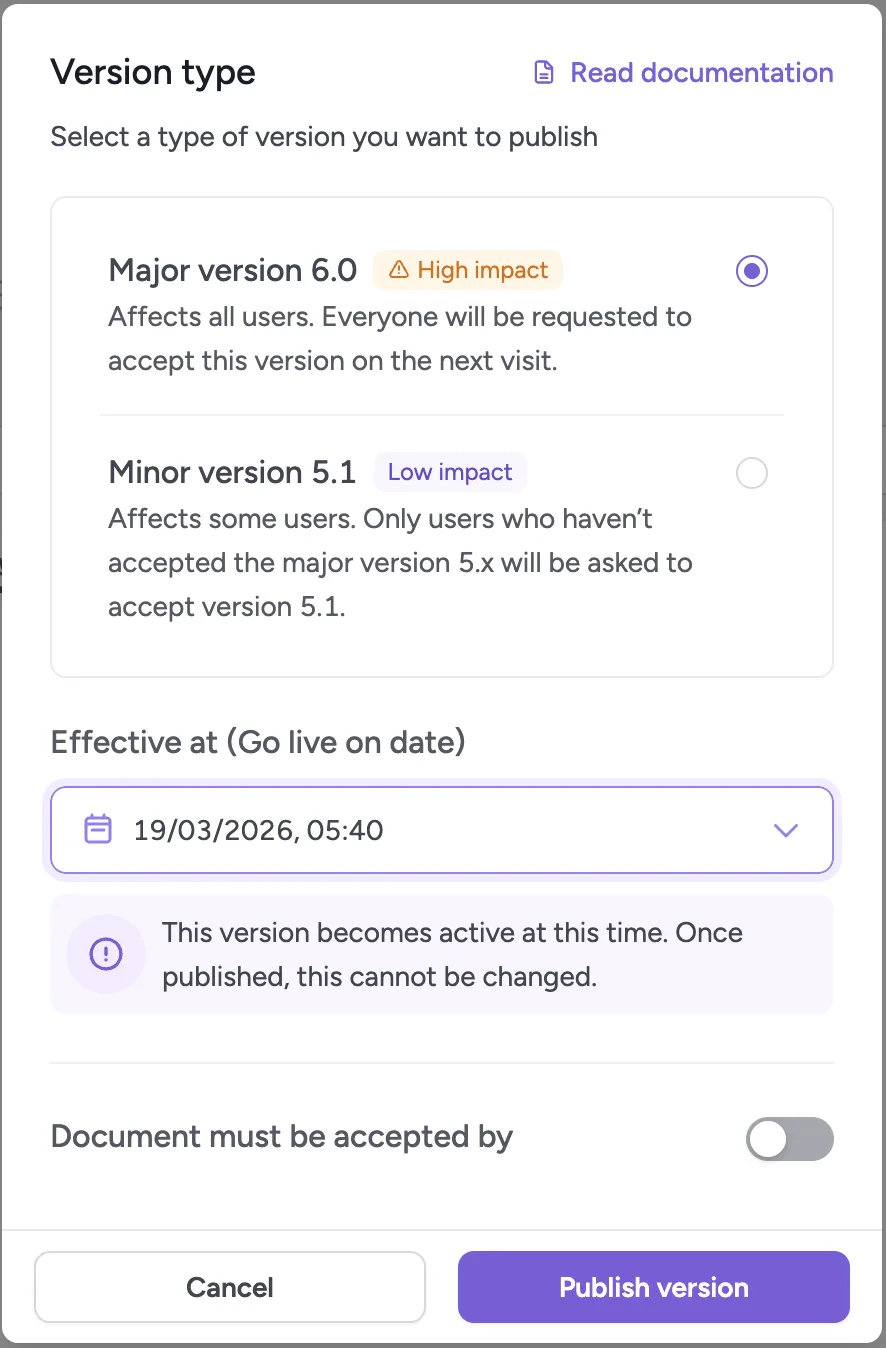
Version type selection
First version
The first version of every template is always a major version (1.0).
It becomes the baseline that all users must accept.
Major versions
A major version is used when the content changes in a meaningful or legally important way. When you publish a major version:- All users must review and accept the updated terms again
- Previous consent no longer applies
- This version becomes the new baseline for future minor versions
- Updated Terms & Conditions
- New legal requirements
- Changes in user rights or obligations
- Significant policy updates
Minor versions
A minor version is used for small adjustments that do not require users to re-accept if they already accepted the latest major version. When you publish a minor version:- Users who accepted the most recent major version do not need to re-accept
- Only users who did not accept the latest major version will be prompted
- Typically used for small text updates or non-critical clarifications
- Fixing typos
- Updating formatting
- Clarifying non-legal wording
- Adjusting minor details that do not affect user rights
Choosing a version type
Choosing between major and minor version
Template version lifecycle
When you publish a new version, you must choose an Effective at date and time. That timestamp determines when the new version becomes visible to end users. Until the effective time is reached, the previously effective version continues to be presented.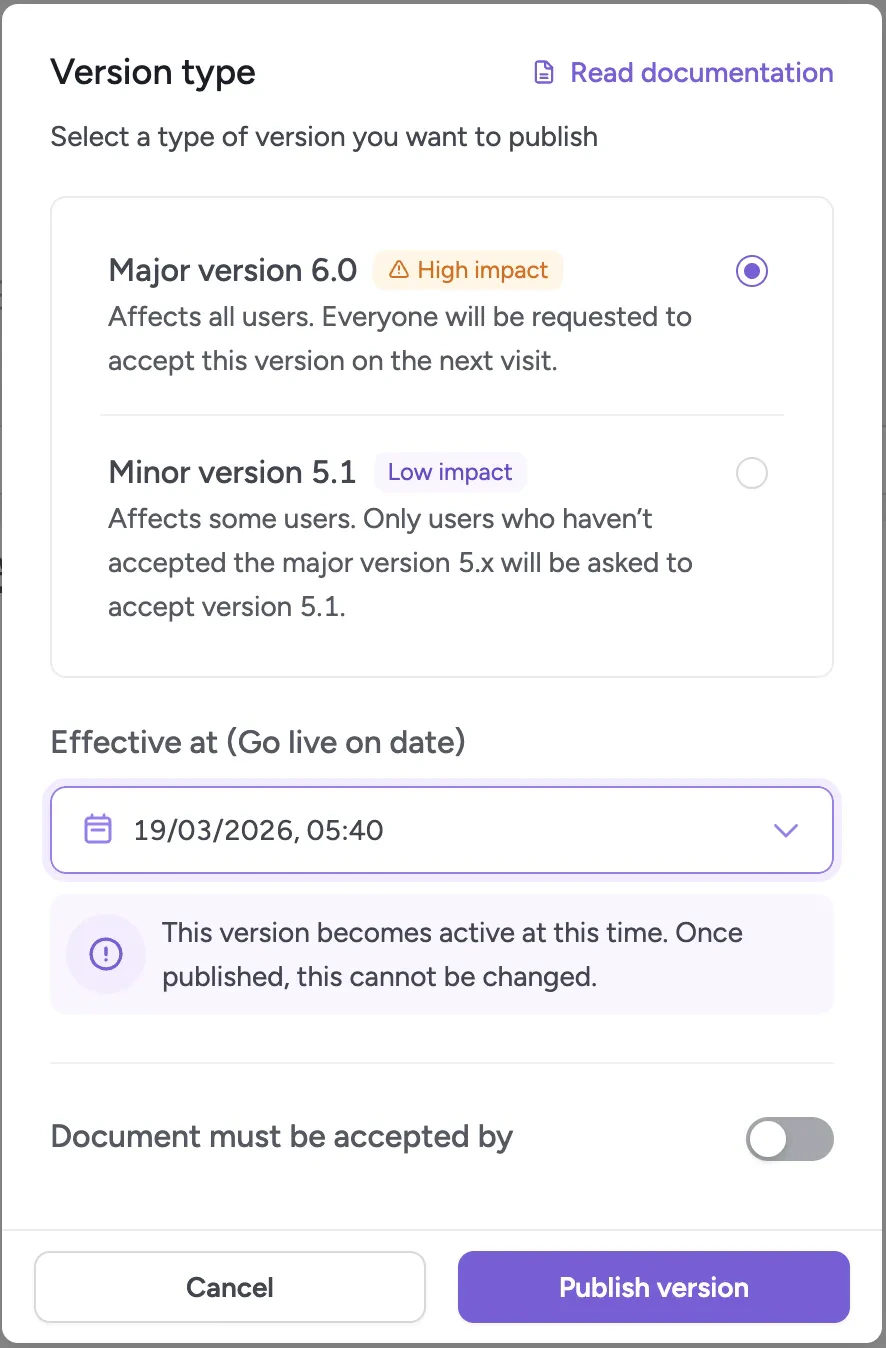
Publish dialog with version type selection and effective date picker
If a scheduled version already exists, any new version can only go live at least
one hour after the scheduled version’s effective time. To go live sooner,
delete the scheduled version first.
Dates and times displayed in the ClickTerm UI are shown in your browser’s time zone.
When processed, they are automatically converted to UTC.
Lifecycle states
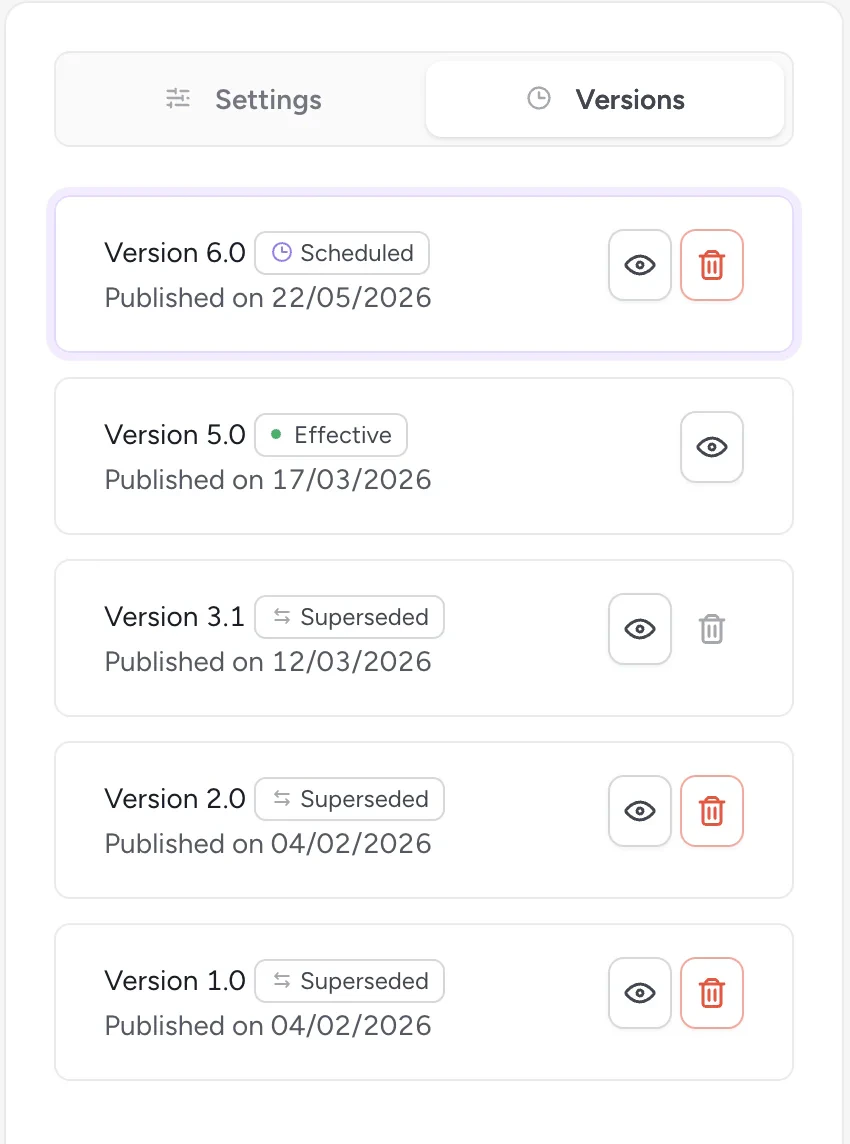
Version lifecycle states
Related
Editing content
Create and publish template versions.
Developer guide: Version lifecycle
How version lifecycle affects SDK behavior.