> ## Documentation Index
> Fetch the complete documentation index at: https://docs.clickterm.com/llms.txt
> Use this file to discover all available pages before exploring further.
# Templates overview
> Manage all legal documents shown during clickwrap flows using the Templates page in the ClickTerm Dashboard.
The **Templates** page is the first screen you see after logging into the ClickTerm Dashboard. This is where you manage all legal documents shown to your users during clickwrap flows, such as Terms & Conditions, Privacy Policies, and various agreements.
This page gives you a quick overview of all templates you have created and their current status. It is designed to help you quickly understand which templates are active, which are outdated, and which may need updates.
## Templates table
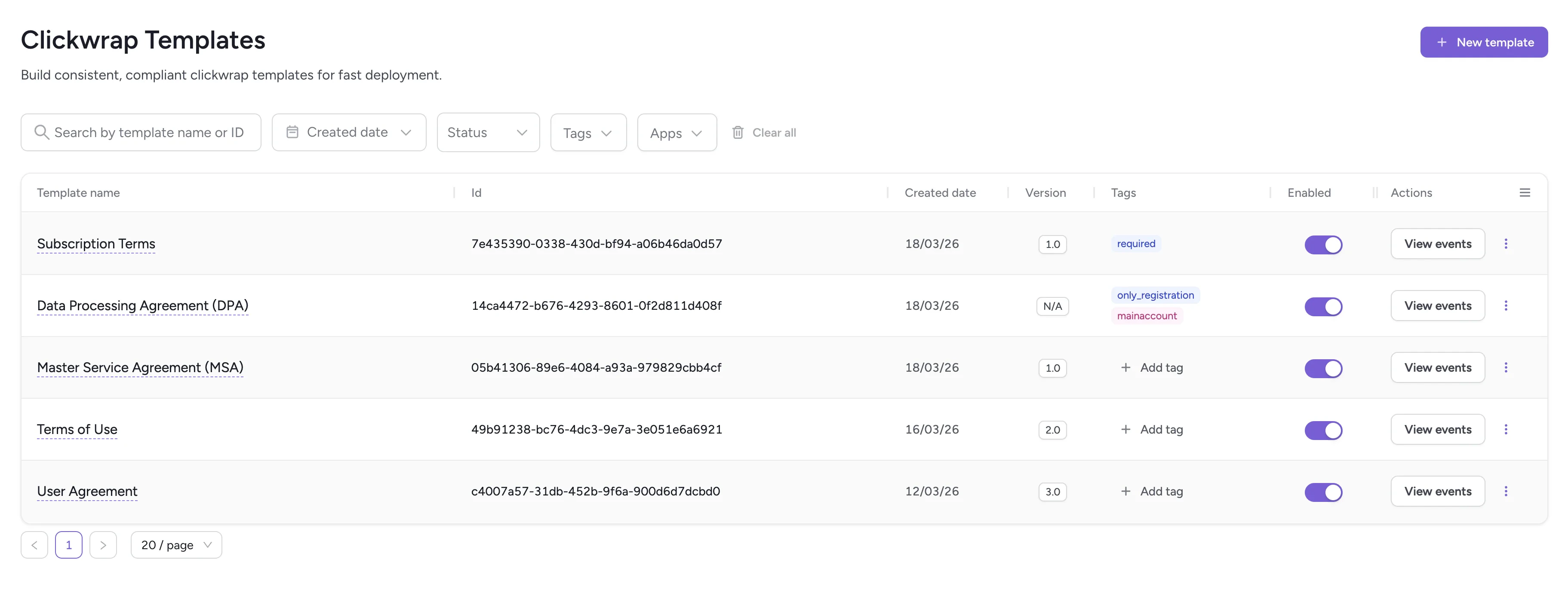 Each row in the table contains:
* **Template Name** — Opens the full details of the template
* **ID** — The unique `ClickwrapTemplateId` used in the API
* **Created date** — When the template was created
* **Version** — The currently effective version
* **Tags** — Tags associated with the template
* **Enabled** — Whether users can see this template in clickwrap flows
* **Actions** — Options such as "View events"
The **ID** column is especially important when you integrate ClickTerm into your product.
**Search & Filters** — You can use the top bar to search by template name or ID,
filter by creation date, enabled/disabled status, associated tags, or linked apps.
## What you can do here
### View or edit a template
Click the template name to open its details. You can review the text, check version history, create a new version or draft.
### View version history
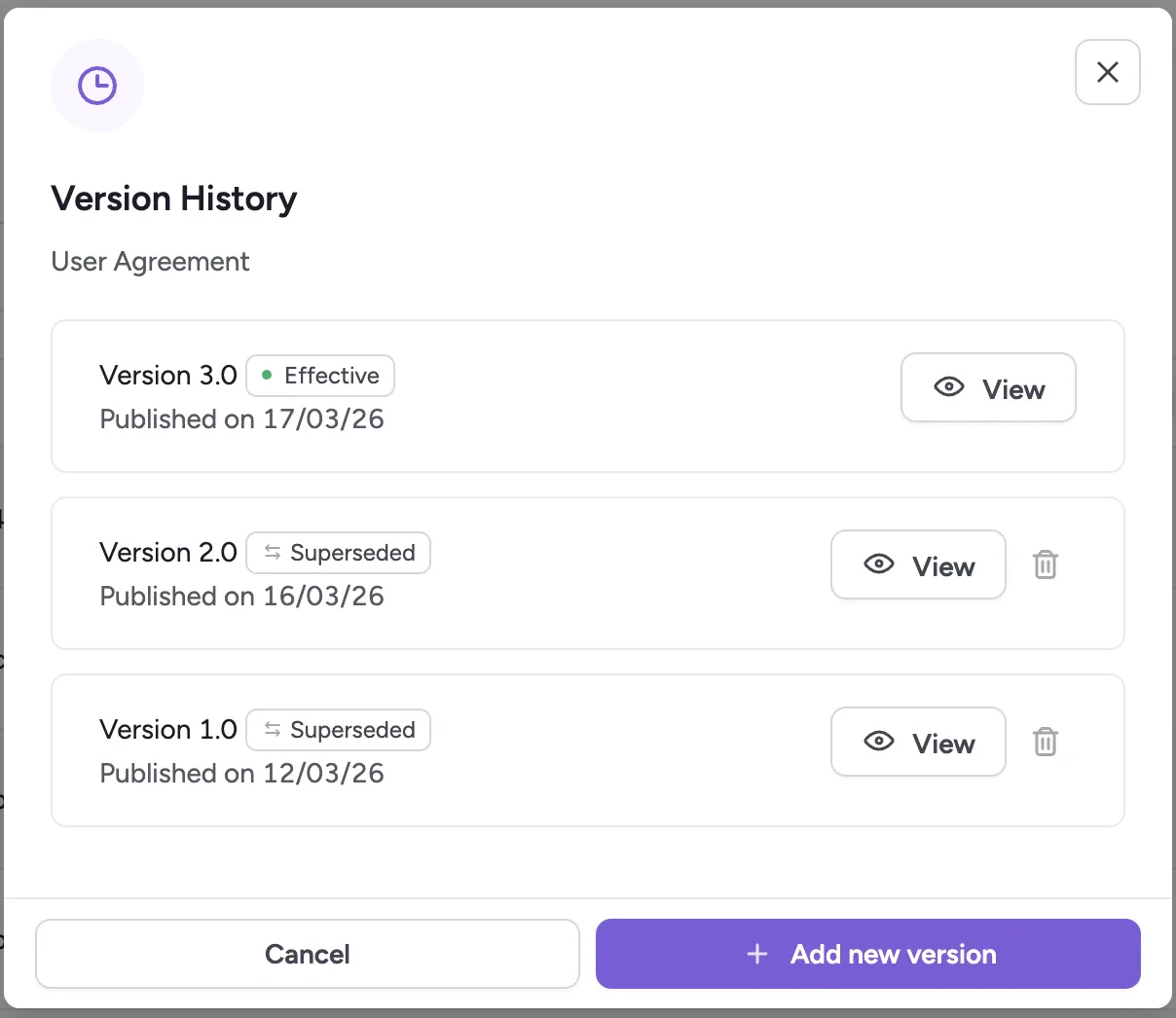
Click the currently effective version of the template to see all published versions.
Each row in the table contains:
* **Template Name** — Opens the full details of the template
* **ID** — The unique `ClickwrapTemplateId` used in the API
* **Created date** — When the template was created
* **Version** — The currently effective version
* **Tags** — Tags associated with the template
* **Enabled** — Whether users can see this template in clickwrap flows
* **Actions** — Options such as "View events"
The **ID** column is especially important when you integrate ClickTerm into your product.
**Search & Filters** — You can use the top bar to search by template name or ID,
filter by creation date, enabled/disabled status, associated tags, or linked apps.
## What you can do here
### View or edit a template
Click the template name to open its details. You can review the text, check version history, create a new version or draft.
### View version history
Click the currently effective version of the template to see all published versions.
 ### Enable or disable a template
Use the toggle to activate or deactivate the template. Only enabled templates may appear in clickwrap flows.
Disabled templates are excluded from API responses.
### View events
Open all consent-related events linked to a template, including device information, timestamps, IP, and other metadata.
### Configure template settings
### Enable or disable a template
Use the toggle to activate or deactivate the template. Only enabled templates may appear in clickwrap flows.
Disabled templates are excluded from API responses.
### View events
Open all consent-related events linked to a template, including device information, timestamps, IP, and other metadata.
### Configure template settings
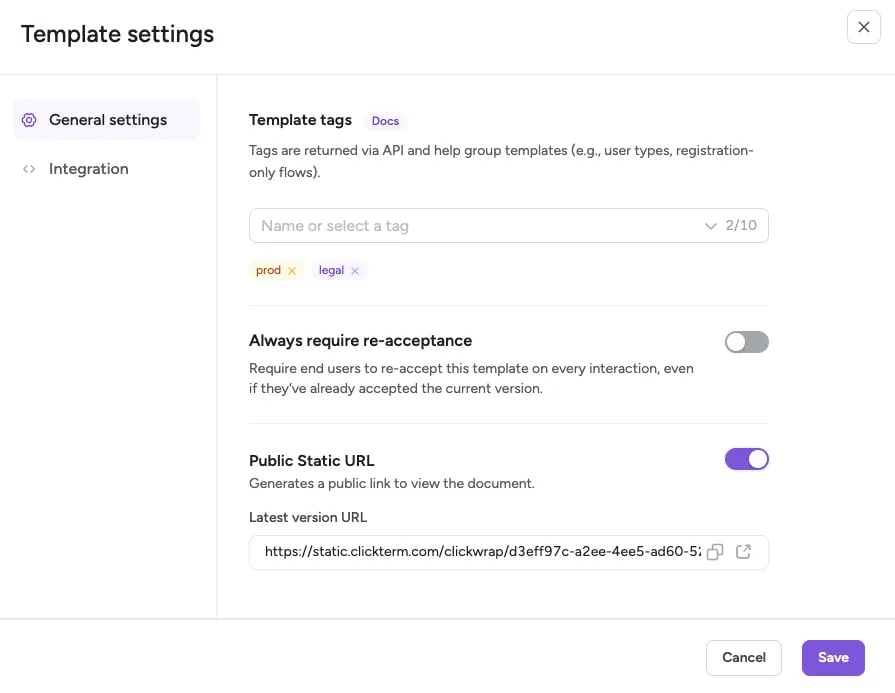 Click **Add tag** or **Set up Clickwrap** in the Actions menu to open the Template settings dialog. The **General settings** tab holds the options below, and the **Integration** tab is where you link the template to an app for the [Developer API](/dev/introduction).
#### Template tags
Tags are returned via the API and help you group templates (for example, by user types or registration-only flows). Add or remove tags from the **General settings** tab.
#### Always require re-acceptance
The **Always require re-acceptance** toggle requires end users to re-accept this template on every interaction, even if they've already accepted the current version. Use it when passive carry-over of consent across sessions is not legally sufficient for your use case.
When the toggle is on, a user who has already accepted the current major version is re-prompted each time, and re-signing creates a **new** consent event alongside the existing one. The prior acceptance stays binding and unchanged - turning it on never retroactively invalidates an agreement, it only changes future behavior.
Only **Owners** and **Admins** can change this setting. Members cannot toggle it.
Each re-acceptance is a billable verify event and generates a new Certificate of Acceptance, so with this toggle on your event count grows with how often users return. Worth keeping in mind when you enable it.
Developers can detect when a re-display is required by reading the `reAcceptanceRequired` flag on the [consent status](/dev/guides/checking-consent-status#re-acceptance) endpoint.
If you need a one-off re-acceptance for specific users or templates instead of a standing policy, see [Request clickwrap re-acceptance](/api-reference/events/request-clickwrap-re-acceptance).
#### Public Static URL
If the template has published content, enable **Public Static URL** to generate a public link that anyone can use to view the document.
### Create a new template
Click the **New Template** button in the top right corner to set up a new template. After you create it, a unique `ClickwrapTemplateId` is generated automatically.
Create separate templates for each type of legal document and disable templates you no longer use.
## Next steps
Write and publish your template content using the rich text editor.
Insert dynamic fields like name, email, and company into your templates.
Click **Add tag** or **Set up Clickwrap** in the Actions menu to open the Template settings dialog. The **General settings** tab holds the options below, and the **Integration** tab is where you link the template to an app for the [Developer API](/dev/introduction).
#### Template tags
Tags are returned via the API and help you group templates (for example, by user types or registration-only flows). Add or remove tags from the **General settings** tab.
#### Always require re-acceptance
The **Always require re-acceptance** toggle requires end users to re-accept this template on every interaction, even if they've already accepted the current version. Use it when passive carry-over of consent across sessions is not legally sufficient for your use case.
When the toggle is on, a user who has already accepted the current major version is re-prompted each time, and re-signing creates a **new** consent event alongside the existing one. The prior acceptance stays binding and unchanged - turning it on never retroactively invalidates an agreement, it only changes future behavior.
Only **Owners** and **Admins** can change this setting. Members cannot toggle it.
Each re-acceptance is a billable verify event and generates a new Certificate of Acceptance, so with this toggle on your event count grows with how often users return. Worth keeping in mind when you enable it.
Developers can detect when a re-display is required by reading the `reAcceptanceRequired` flag on the [consent status](/dev/guides/checking-consent-status#re-acceptance) endpoint.
If you need a one-off re-acceptance for specific users or templates instead of a standing policy, see [Request clickwrap re-acceptance](/api-reference/events/request-clickwrap-re-acceptance).
#### Public Static URL
If the template has published content, enable **Public Static URL** to generate a public link that anyone can use to view the document.
### Create a new template
Click the **New Template** button in the top right corner to set up a new template. After you create it, a unique `ClickwrapTemplateId` is generated automatically.
Create separate templates for each type of legal document and disable templates you no longer use.
## Next steps
Write and publish your template content using the rich text editor.
Insert dynamic fields like name, email, and company into your templates.