> ## Documentation Index
> Fetch the complete documentation index at: https://docs.clickterm.com/llms.txt
> Use this file to discover all available pages before exploring further.
# Editing content & publishing
> Create and edit template content, manage languages, save drafts, and publish immutable versions.
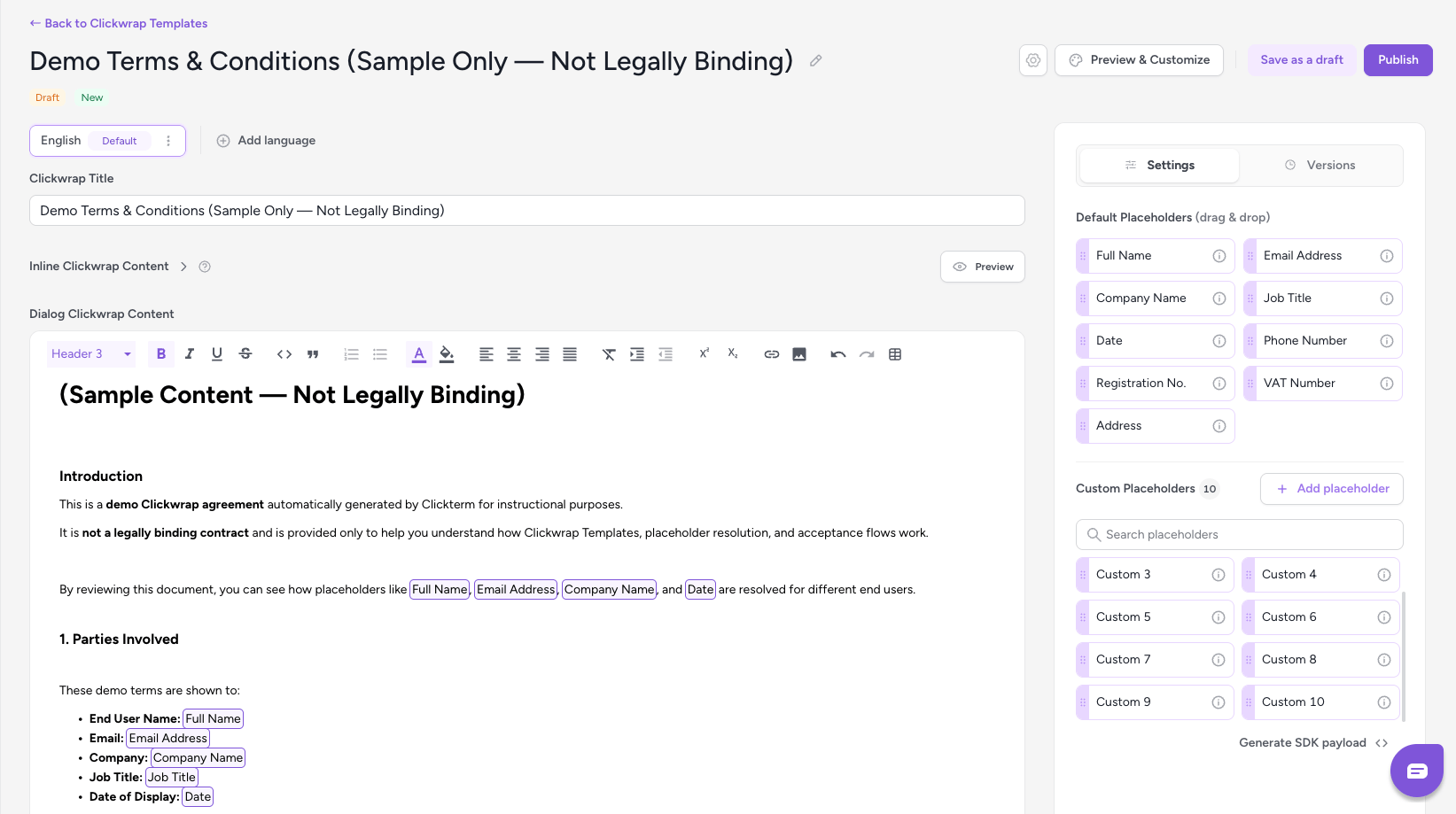
When you click **New Template** on the Templates page or any existing template from the list, you are taken to the template content editor. This is where you define the content of your legal document, create its version, and prepare it for publishing.
 Templates with new content are always created as **drafts**. They are not visible
to your end users and cannot be used in integrations until you publish them.
## Clickwrap Content
The large text area labeled **Clickwrap Content** is where you write or paste the content of your legal document. This is the main body your end users will see when the clickwrap dialog is presented. The editor supports headings, lists, quotes, code blocks, links, images, and tables as well as basic formatting options.
## Inline Content
Starting from **SDK v2.2.0**, templates can include **Inline Content** — a short consent line displayed as an inline checkbox on your page (instead of a full modal dialog). You can configure inline content in the editor above the clickwrap content section.
Templates with new content are always created as **drafts**. They are not visible
to your end users and cannot be used in integrations until you publish them.
## Clickwrap Content
The large text area labeled **Clickwrap Content** is where you write or paste the content of your legal document. This is the main body your end users will see when the clickwrap dialog is presented. The editor supports headings, lists, quotes, code blocks, links, images, and tables as well as basic formatting options.
## Inline Content
Starting from **SDK v2.2.0**, templates can include **Inline Content** — a short consent line displayed as an inline checkbox on your page (instead of a full modal dialog). You can configure inline content in the editor above the clickwrap content section.
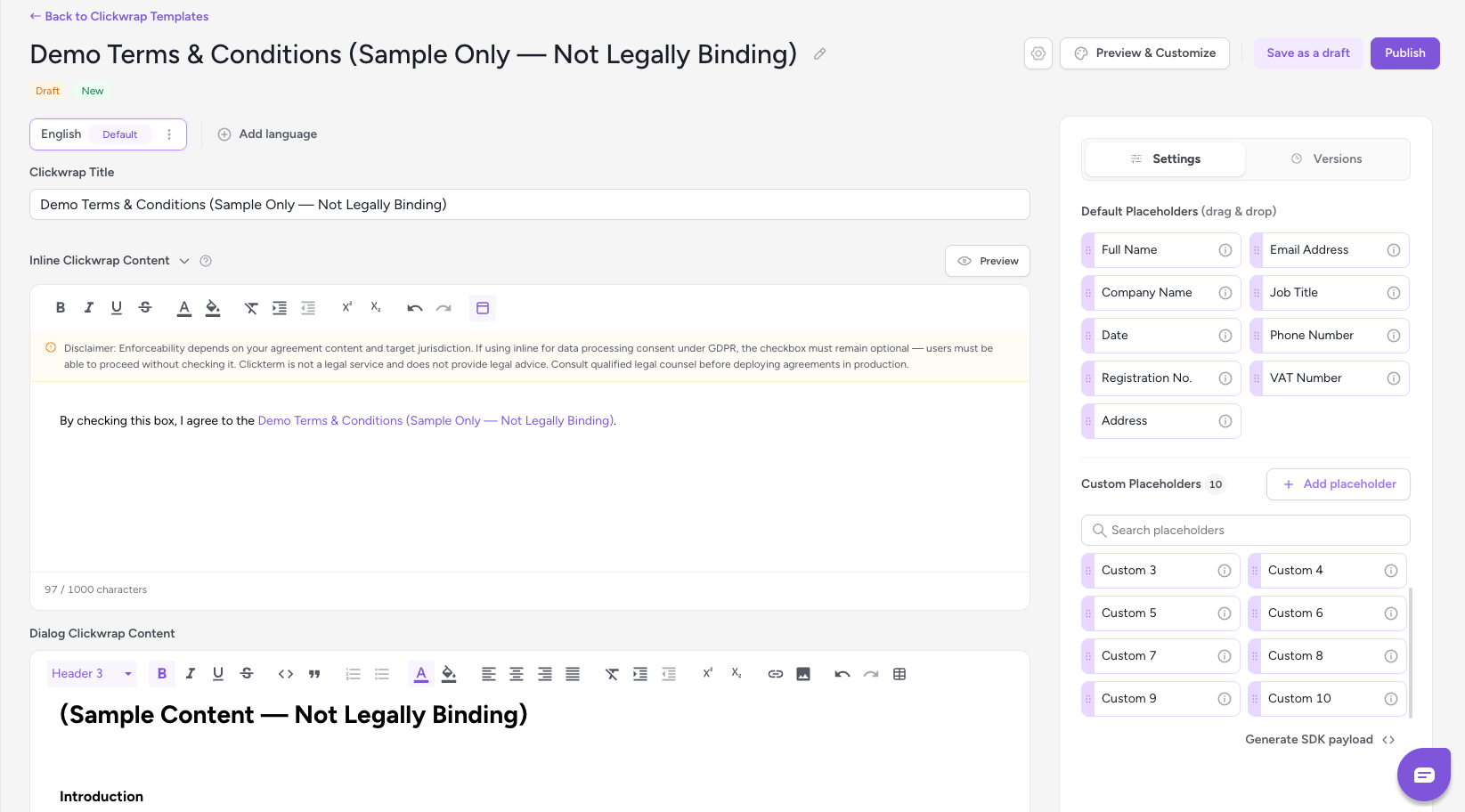 The **Inline Content** field supports a limited subset of formatting — typically a short sentence with a link to the full agreement (e.g., "I agree to the Terms and Conditions"). When the end user clicks the link, the full **Clickwrap Content** is shown in a read-only modal.
Inline content is optional. If you only use dialog mode (`ClicktermDialog.show()`), you do not need to configure it. It is required only when using inline mode (`ClicktermDom.renderInline()`). See [Displaying an inline clickwrap](/dev/guides/displaying-inline-clickwrap).
## Language
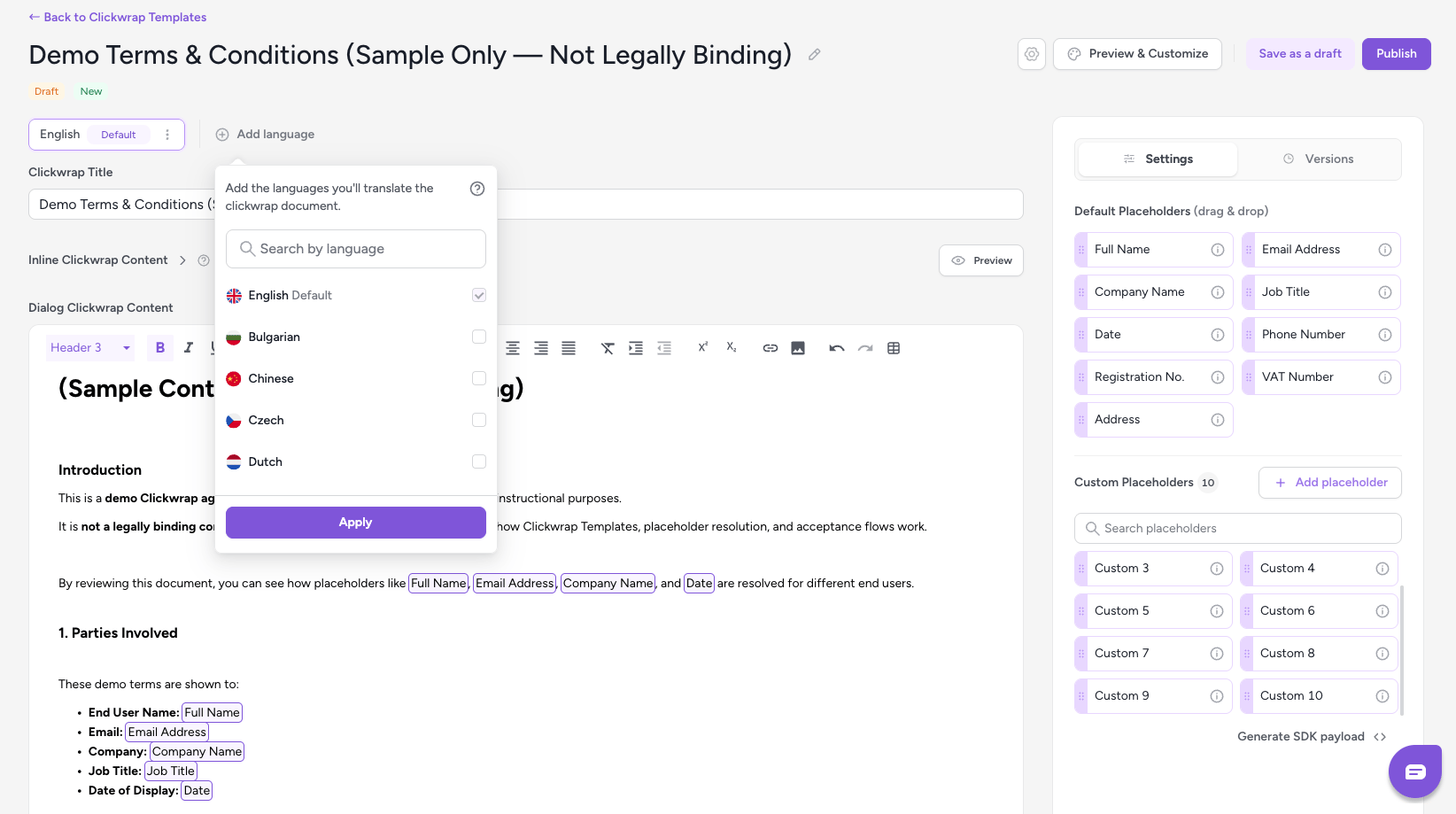
The platform supports a wide range of languages. You can manage languages by adding or removing them, selecting a default language, and configuring language-specific titles and content.
The **Inline Content** field supports a limited subset of formatting — typically a short sentence with a link to the full agreement (e.g., "I agree to the Terms and Conditions"). When the end user clicks the link, the full **Clickwrap Content** is shown in a read-only modal.
Inline content is optional. If you only use dialog mode (`ClicktermDialog.show()`), you do not need to configure it. It is required only when using inline mode (`ClicktermDom.renderInline()`). See [Displaying an inline clickwrap](/dev/guides/displaying-inline-clickwrap).
## Language
The platform supports a wide range of languages. You can manage languages by adding or removing them, selecting a default language, and configuring language-specific titles and content.
 ## Versions panel
On the right side, you will see the **Versions** tab. Every template starts with a single draft version created automatically.
## Versions panel
On the right side, you will see the **Versions** tab. Every template starts with a single draft version created automatically.
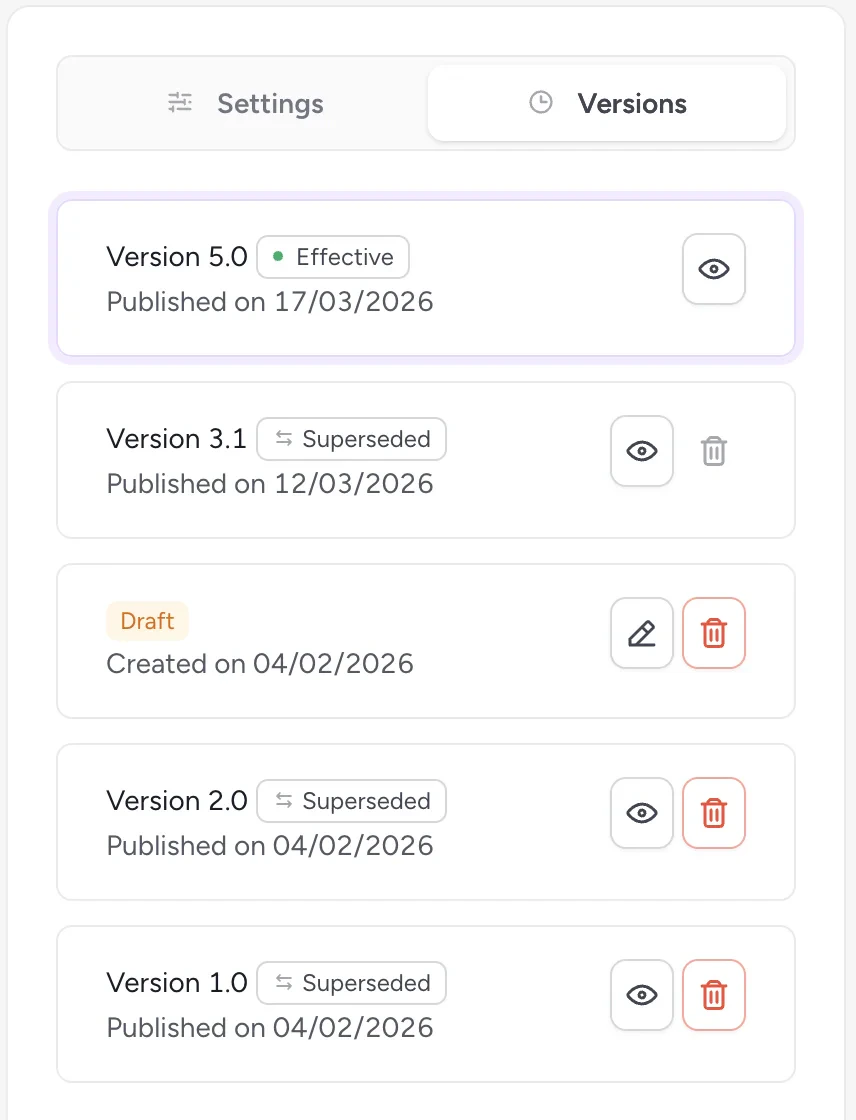 For each version, you can:
* See when it was published or created
* Edit the version **if it is a draft**
* Delete the version (only if it is still a draft or has no linked events)
Templates can have multiple versions over time, but only one version can be effective at a time.
A template is not active until you publish its first effective version.
Publishing a version is irreversible — content cannot be modified afterward.
To make changes, create a new version.
## Settings tab
The **Settings** tab allows you to configure additional options for your template. These settings apply to the template as a whole and influence how the content is displayed during clickwrap flows.
The content of this tab varies depending on whether you are viewing a **draft** or a **published version**:
**Draft version:**
For each version, you can:
* See when it was published or created
* Edit the version **if it is a draft**
* Delete the version (only if it is still a draft or has no linked events)
Templates can have multiple versions over time, but only one version can be effective at a time.
A template is not active until you publish its first effective version.
Publishing a version is irreversible — content cannot be modified afterward.
To make changes, create a new version.
## Settings tab
The **Settings** tab allows you to configure additional options for your template. These settings apply to the template as a whole and influence how the content is displayed during clickwrap flows.
The content of this tab varies depending on whether you are viewing a **draft** or a **published version**:
**Draft version:**
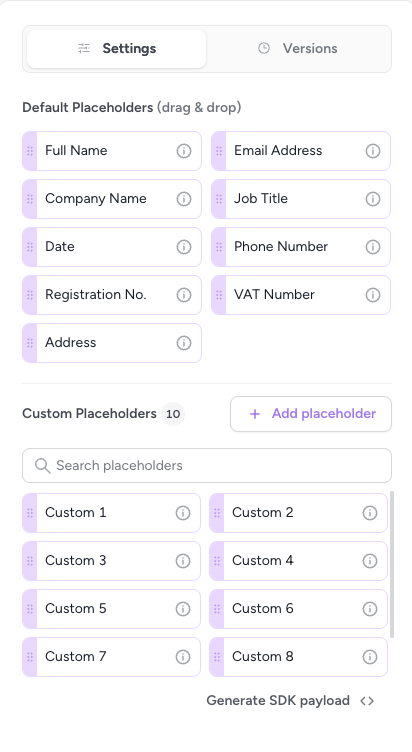 * Configure [placeholders](/product/templates/placeholders) to dynamically insert user-specific data into the document.
**Published version:**
* Configure [placeholders](/product/templates/placeholders) to dynamically insert user-specific data into the document.
**Published version:**
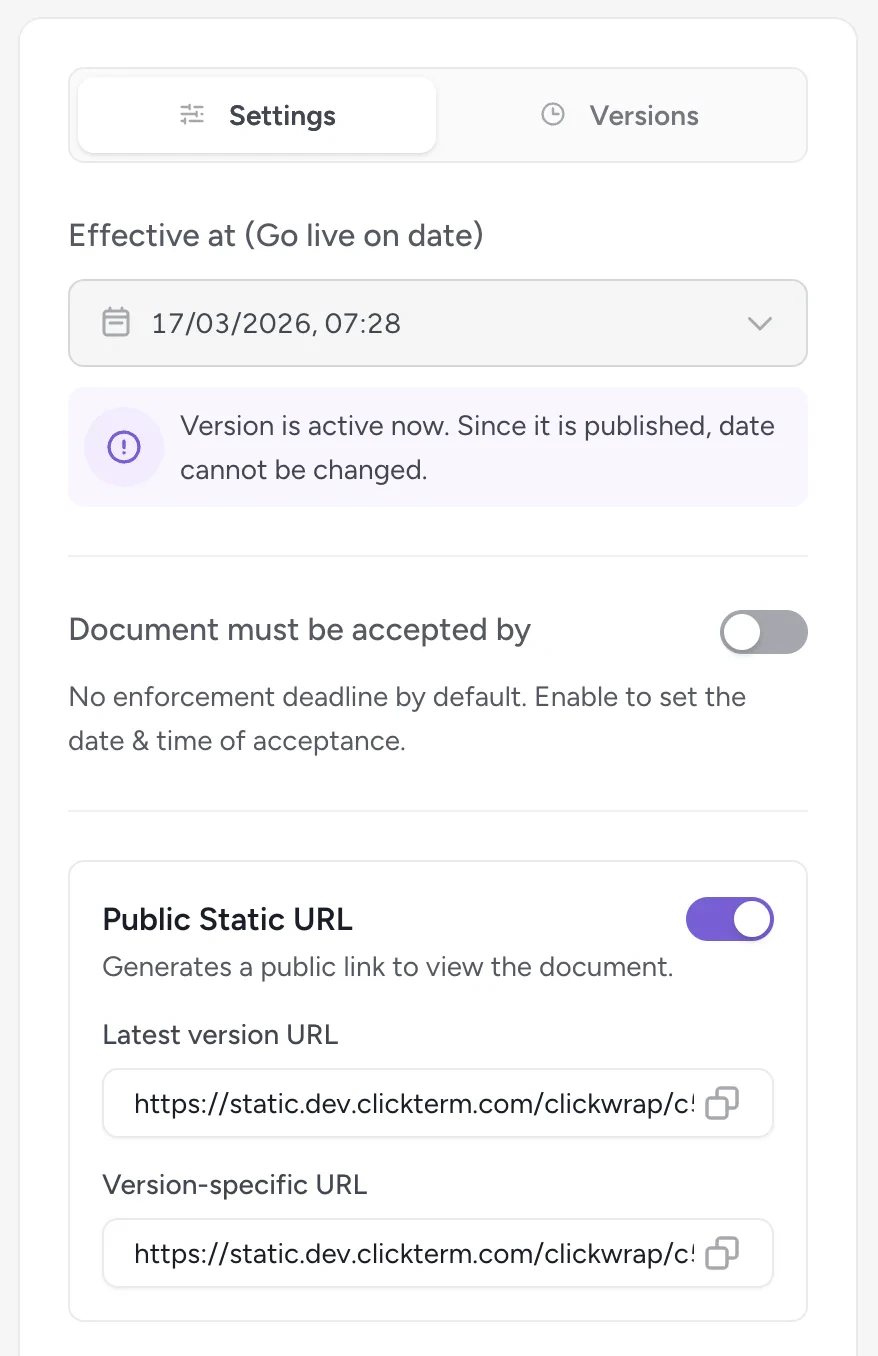 * **Effective at (Go live on date)** — The date and time when the version becomes (or became) active.
* **Document must be accepted by** — An optional date and time indicating when end users are expected to accept the clickwrap. This serves as informational guidance only.
* **Public Static URL settings** — Generates a public link that allows the document to be viewed externally.
## Save as draft and publish
In the top-right corner, you have two actions:
* **Save as a draft** — saves your changes without publishing them
* **Publish** — locks the content and saves it as a new, immutable version
It becomes live and available for integrations only when its `Effective at` time is reached; any updates require creating a new version.
### Add new version
If you return to an existing template later, you can click **Add new version** to create a new editable draft based on the previous content. This is how you update legal documents over time while maintaining a full version history.
## Related
Insert dynamic fields into your templates.
Understand major vs. minor versions and lifecycle states.
Customize how the clickwrap dialog looks for end users.
* **Effective at (Go live on date)** — The date and time when the version becomes (or became) active.
* **Document must be accepted by** — An optional date and time indicating when end users are expected to accept the clickwrap. This serves as informational guidance only.
* **Public Static URL settings** — Generates a public link that allows the document to be viewed externally.
## Save as draft and publish
In the top-right corner, you have two actions:
* **Save as a draft** — saves your changes without publishing them
* **Publish** — locks the content and saves it as a new, immutable version
It becomes live and available for integrations only when its `Effective at` time is reached; any updates require creating a new version.
### Add new version
If you return to an existing template later, you can click **Add new version** to create a new editable draft based on the previous content. This is how you update legal documents over time while maintaining a full version history.
## Related
Insert dynamic fields into your templates.
Understand major vs. minor versions and lifecycle states.
Customize how the clickwrap dialog looks for end users.