> ## Documentation Index
> Fetch the complete documentation index at: https://docs.clickterm.com/llms.txt
> Use this file to discover all available pages before exploring further.
# Billing & invoicing
> Manage your payment methods, billing address, VAT number, and download past invoices.
The **Billing & Invoicing** page allows you to manage your payment methods and invoice details in one place. This page has two tabs:
* **Billing details** — Manage payment information and invoice settings
* **Invoices** — View and download past invoices
## Billing details tab
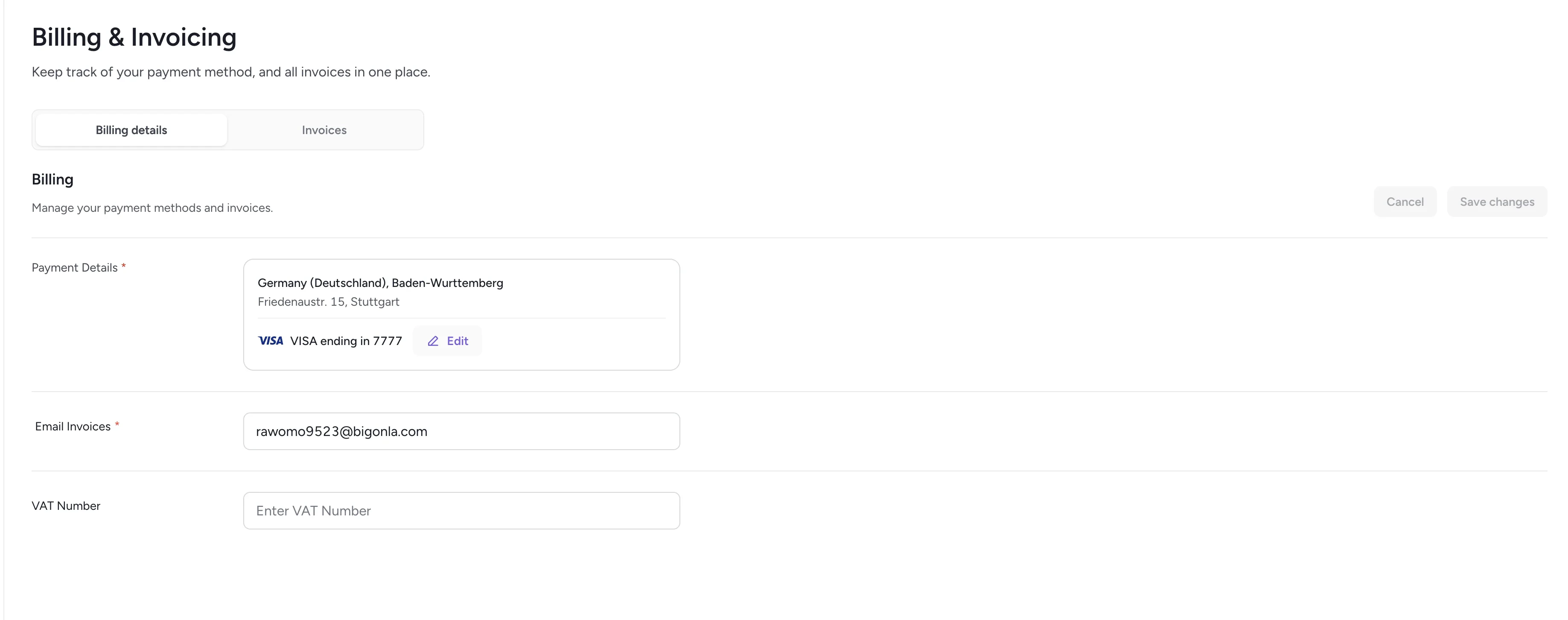 ### Payment method
Your default payment method appears at the top (e.g., a Visa card ending in 7777). You can:
* Set a card as default
* Add a new payment method or remove an existing one
### Billing address
Add and edit your billing address, including:
* Country / region
* City
* Street address
These details appear on all invoices and are required for proper tax documentation.
### Email invoices
Specify the email address where invoices should be delivered.
### VAT number
If applicable, add or update your VAT identification number.
## Invoices tab
### Payment method
Your default payment method appears at the top (e.g., a Visa card ending in 7777). You can:
* Set a card as default
* Add a new payment method or remove an existing one
### Billing address
Add and edit your billing address, including:
* Country / region
* City
* Street address
These details appear on all invoices and are required for proper tax documentation.
### Email invoices
Specify the email address where invoices should be delivered.
### VAT number
If applicable, add or update your VAT identification number.
## Invoices tab
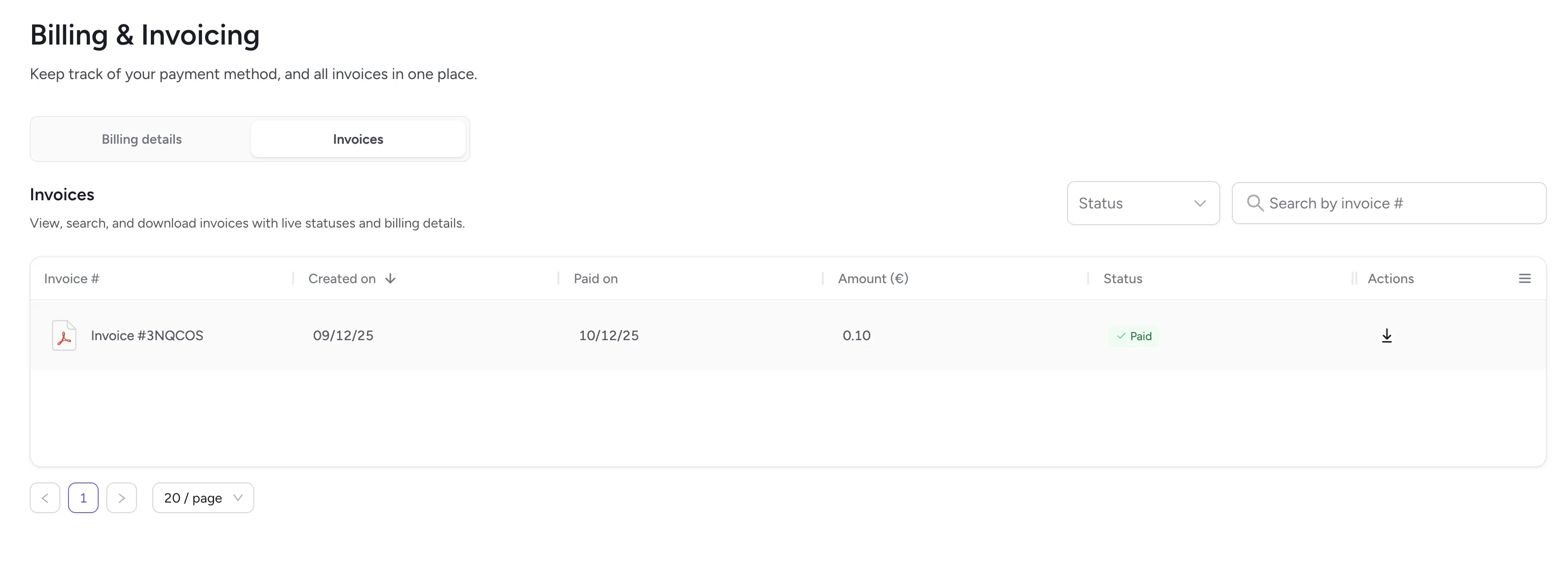 Here you can:
* View invoice numbers
* See creation and payment dates
* Check invoice amounts
* Track statuses (such as **Paid** or **Open**)
* Download invoice PDFs
You can use the search bar to find invoices by number and the **Status** filter to narrow them down.
## Related
View your subscription tier and usage metrics.
Manage applications connected to your workspace.
Here you can:
* View invoice numbers
* See creation and payment dates
* Check invoice amounts
* Track statuses (such as **Paid** or **Open**)
* Download invoice PDFs
You can use the search bar to find invoices by number and the **Status** filter to narrow them down.
## Related
View your subscription tier and usage metrics.
Manage applications connected to your workspace.