> ## Documentation Index
> Fetch the complete documentation index at: https://docs.clickterm.com/llms.txt
> Use this file to discover all available pages before exploring further.
# Creating an app & template
> Set up your ClickTerm integration credentials and publish your first clickwrap template.
Before integrating ClickTerm into your app, you need to create an integration (to get your API credentials) and publish a template (to define the agreement content).
## Creating an app
Go to [Integrations](https://app.clickterm.com/integrations) and click **Add new app** to generate your credentials:
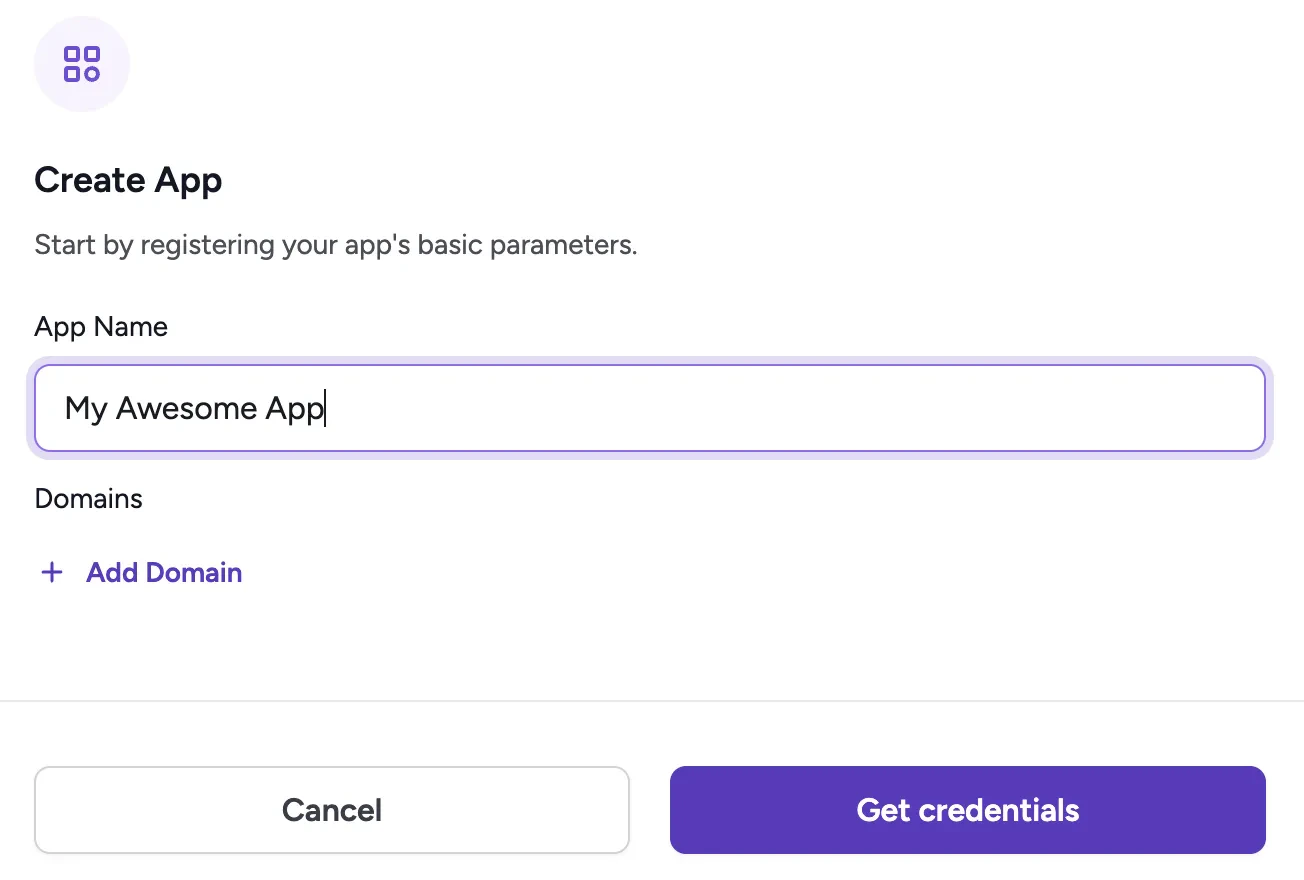 You can have as many Apps as you need. This lets you manage **Clickwrap Templates** for different products.
After creating the app, you'll receive your **App ID** and **App Key**. You will need these at different points of the integration — the App ID for the client SDK, and the App Key for backend verification.
You can have as many Apps as you need. This lets you manage **Clickwrap Templates** for different products.
After creating the app, you'll receive your **App ID** and **App Key**. You will need these at different points of the integration — the App ID for the client SDK, and the App Key for backend verification.
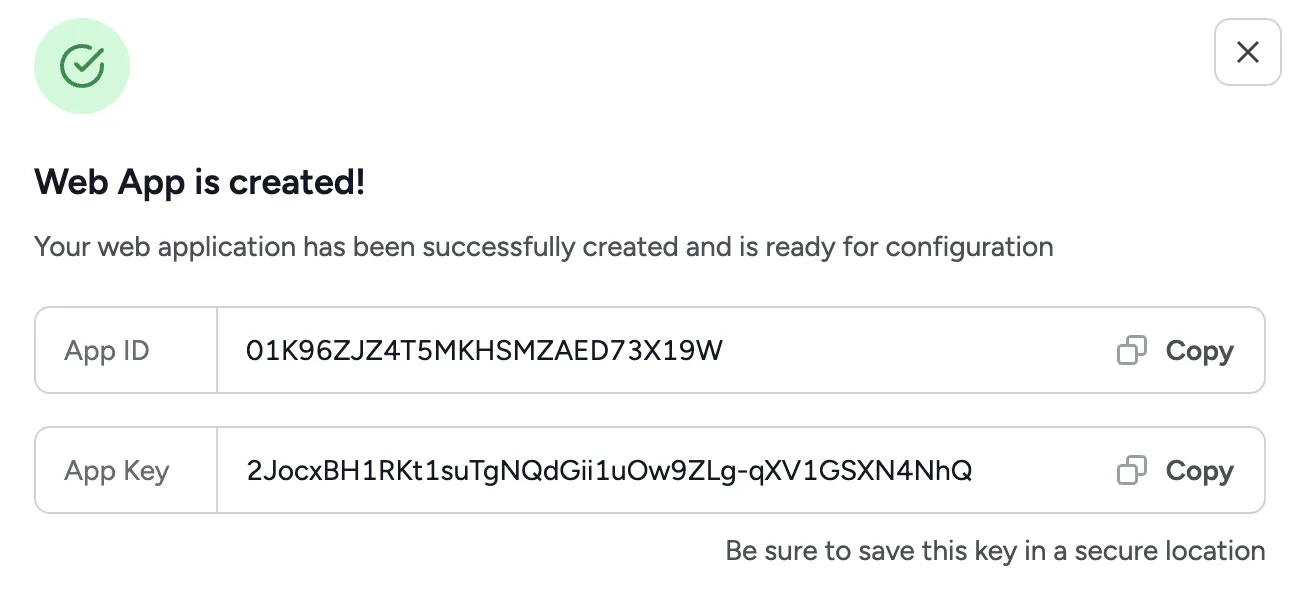 Store your App Key in a safe place. It will not be shown again after this step, but you can regenerate it at any time. If you regenerate or delete it, you will need to update it on your backend.
## Creating a template
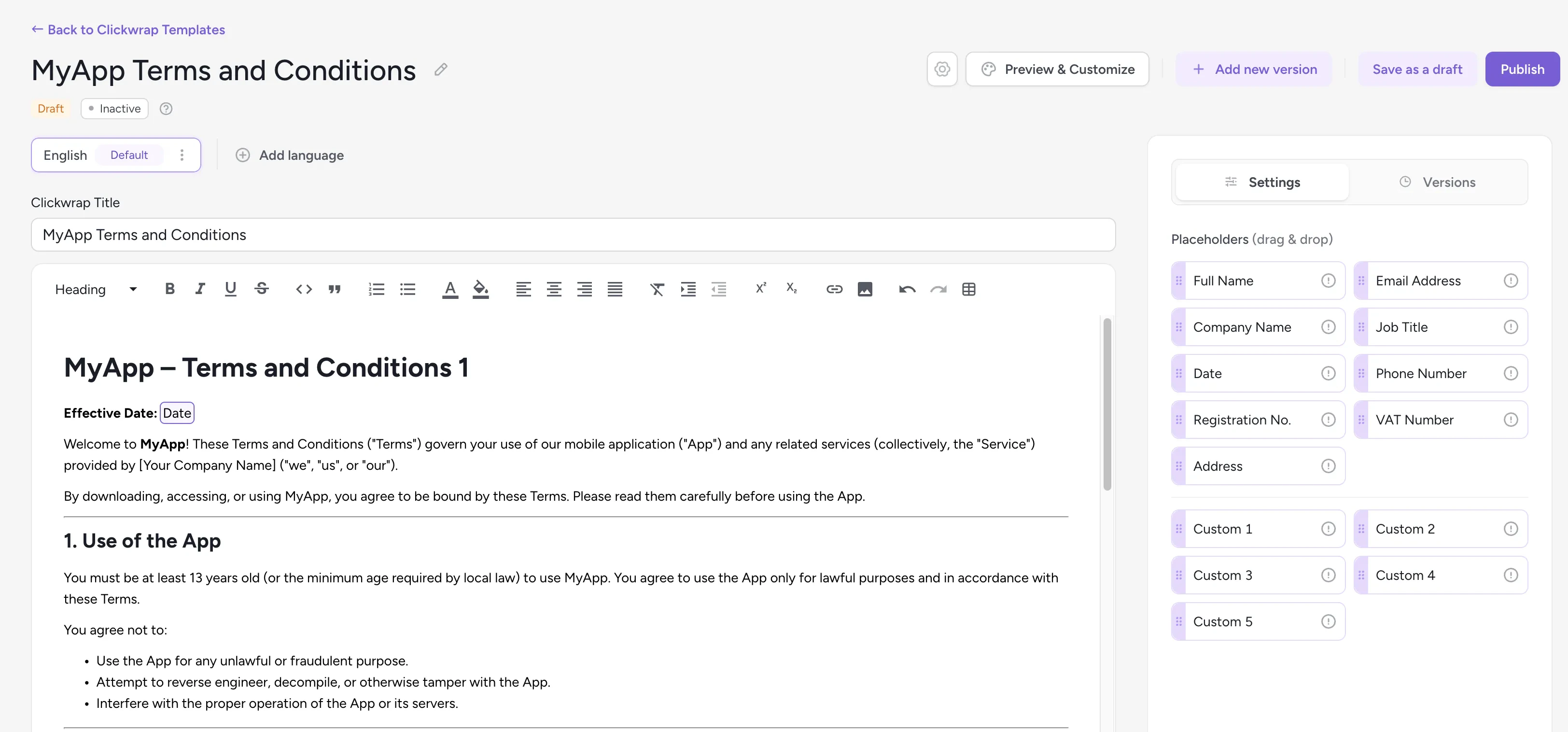
Create a new **Clickwrap Template** in the [Templates](https://app.clickterm.com/templates) menu. Use the rich text editor to write your agreement content. You can insert dynamic [placeholders](/dev/guides/placeholders) from the sidebar to personalize the clickwrap for each end user.
Store your App Key in a safe place. It will not be shown again after this step, but you can regenerate it at any time. If you regenerate or delete it, you will need to update it on your backend.
## Creating a template
Create a new **Clickwrap Template** in the [Templates](https://app.clickterm.com/templates) menu. Use the rich text editor to write your agreement content. You can insert dynamic [placeholders](/dev/guides/placeholders) from the sidebar to personalize the clickwrap for each end user.
 ## Publishing your template
You can save your content as a **Draft** at any time. When you are ready, click **Publish** — this locks the content and saves it as a new version. You can publish additional versions in the future if you need to make changes.
## Publishing your template
You can save your content as a **Draft** at any time. When you are ready, click **Publish** — this locks the content and saves it as a new version. You can publish additional versions in the future if you need to make changes.
 During publication, you can specify:
* **Acceptance deadline** (`mustAcceptBy`) — The date and time by which end users are expected to accept the clickwrap. This field is optional and serves primarily as informational guidance; it does not automatically block access or enforce acceptance.
* **Effective at** (`effectiveAt`) — The date and time when the published version becomes effective and is presented to end users. Before this time, the previous version (if any) remains in effect. Note that the active version is determined by this timestamp, not by publish order — a newly published version does not become current until its **Effective at** time is reached.
The date and time you see in the ClickTerm UI are in your browser's time zone. They are automatically converted to UTC when processed.
## Enabling the template
After publishing the template content, you must **Enable** the template from the Templates table to make it available for client clickwrap requests. You can **Disable** the template at any time to stop new requests from using it.
During publication, you can specify:
* **Acceptance deadline** (`mustAcceptBy`) — The date and time by which end users are expected to accept the clickwrap. This field is optional and serves primarily as informational guidance; it does not automatically block access or enforce acceptance.
* **Effective at** (`effectiveAt`) — The date and time when the published version becomes effective and is presented to end users. Before this time, the previous version (if any) remains in effect. Note that the active version is determined by this timestamp, not by publish order — a newly published version does not become current until its **Effective at** time is reached.
The date and time you see in the ClickTerm UI are in your browser's time zone. They are automatically converted to UTC when processed.
## Enabling the template
After publishing the template content, you must **Enable** the template from the Templates table to make it available for client clickwrap requests. You can **Disable** the template at any time to stop new requests from using it.
 Make sure your Clickwrap Template is **Enabled** and has at least one content version in the **Effective** state (i.e. its **Effective at** time has already been reached) before attempting to request a clickwrap from the Client SDKs. A version that is still **Scheduled** will not be served yet.
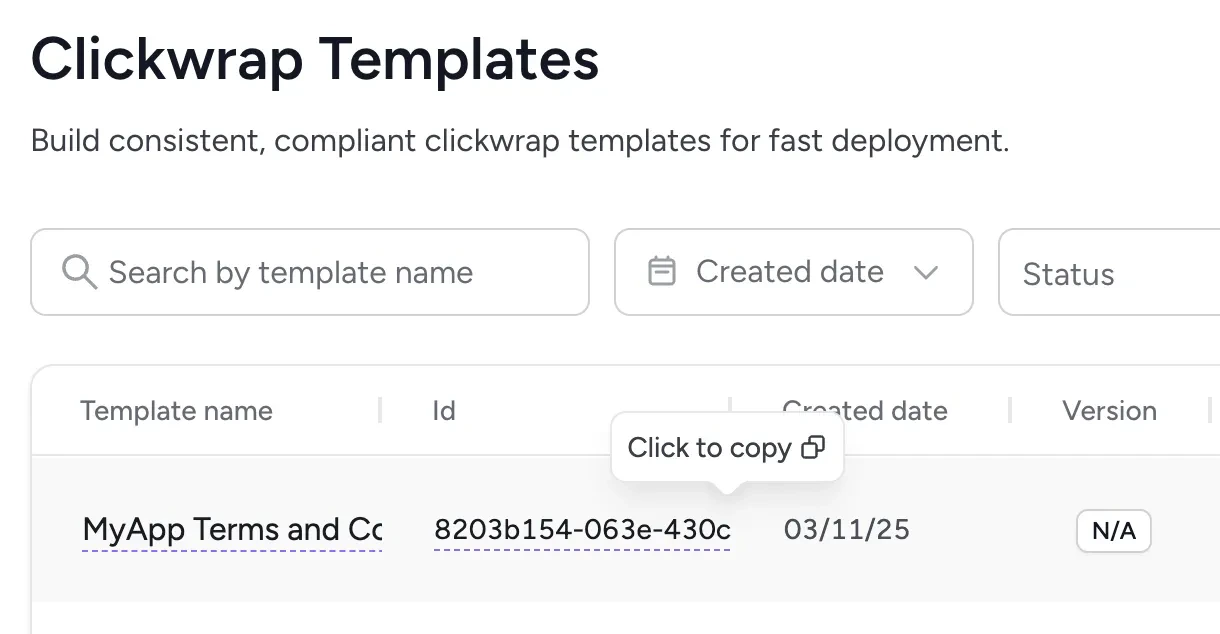
Once your template is enabled, retrieve the **Clickwrap Template Id** from the templates list — you will need it in the SDK integration steps.
Make sure your Clickwrap Template is **Enabled** and has at least one content version in the **Effective** state (i.e. its **Effective at** time has already been reached) before attempting to request a clickwrap from the Client SDKs. A version that is still **Scheduled** will not be served yet.
Once your template is enabled, retrieve the **Clickwrap Template Id** from the templates list — you will need it in the SDK integration steps.
 ## Next steps
Integrate ClickTerm into your web app.
Integrate ClickTerm into your Android app.
## Next steps
Integrate ClickTerm into your web app.
Integrate ClickTerm into your Android app.