> ## Documentation Index
> Fetch the complete documentation index at: https://docs.clickterm.com/llms.txt
> Use this file to discover all available pages before exploring further.
# Zapier
> Use the ClickTerm app on Zapier to verify clickwrap acceptance and download signed documents inside your Zaps.
## Introduction
The **ClickTerm app** is available on [Zapier](https://zapier.com). Once connected to your Zapier account, you can add ClickTerm as a step in any **Zap** to verify clickwrap acceptance, branch on the result, and download the signed Agreement or Certificate of Acceptance.
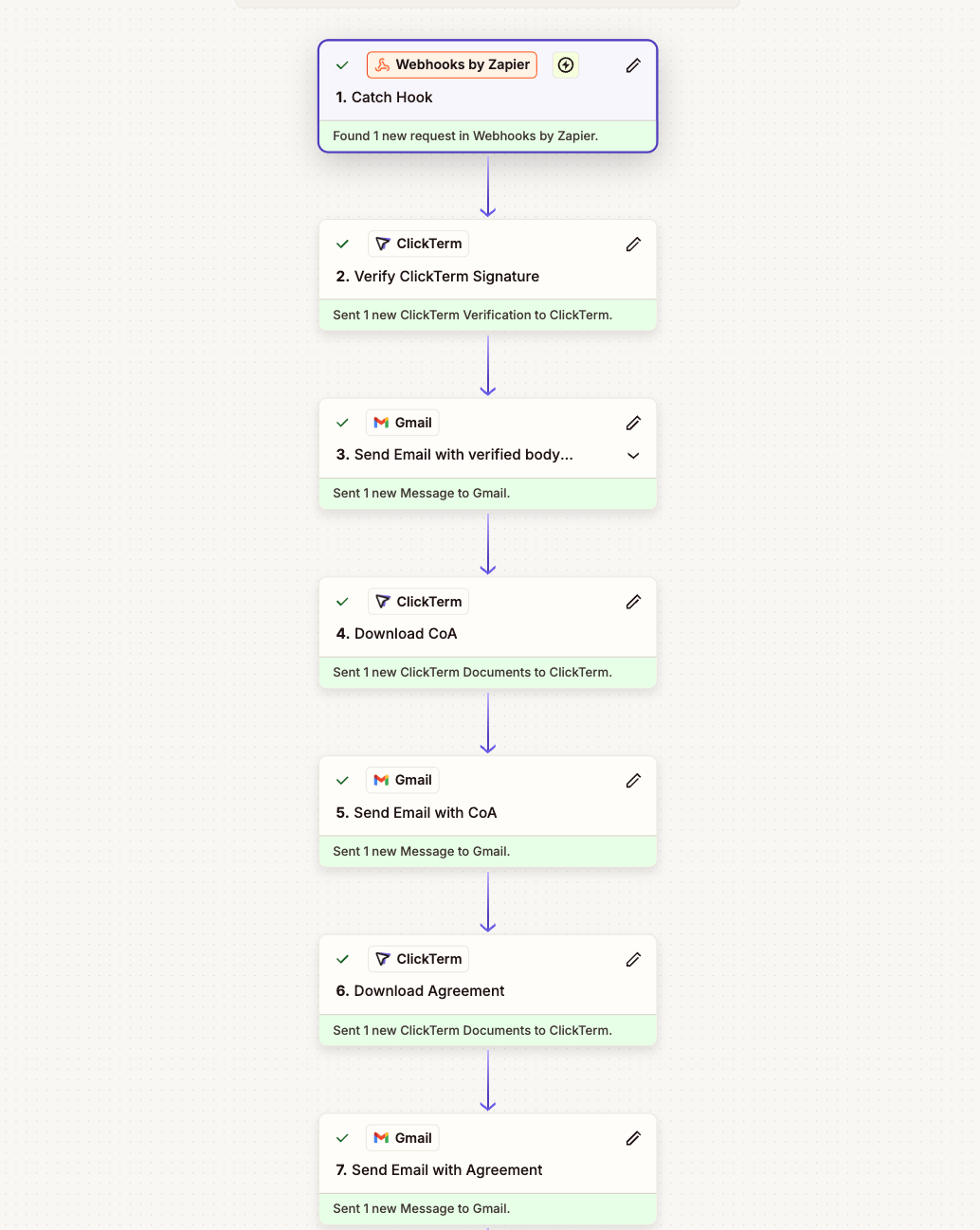
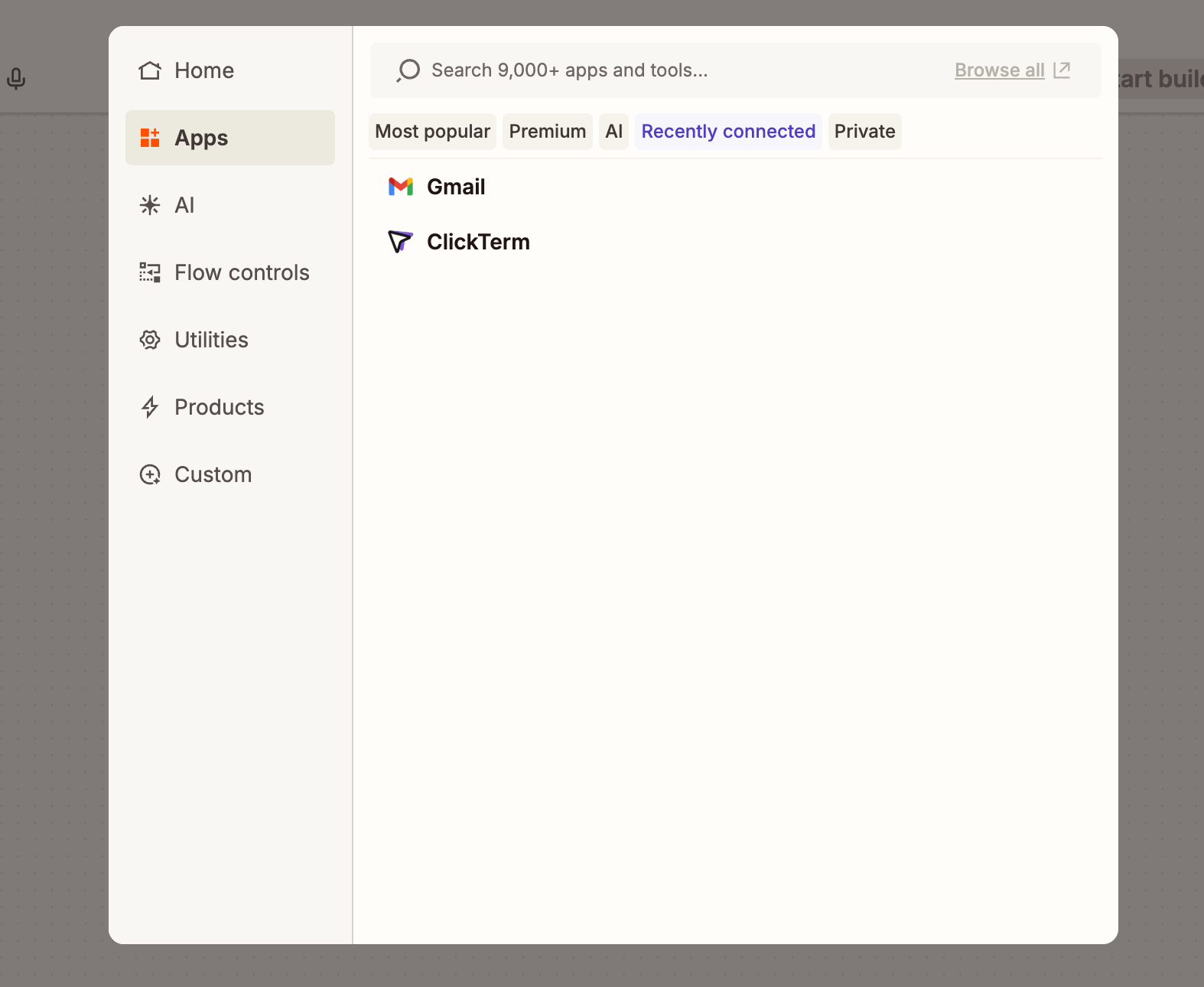 ClickTerm provides **actions** (steps that perform work in a Zap), not a **trigger**. Your application sends the verification data into a Zap using **Webhooks by Zapier** as the trigger step; ClickTerm actions then run against that data.
## When to use the Zapier app
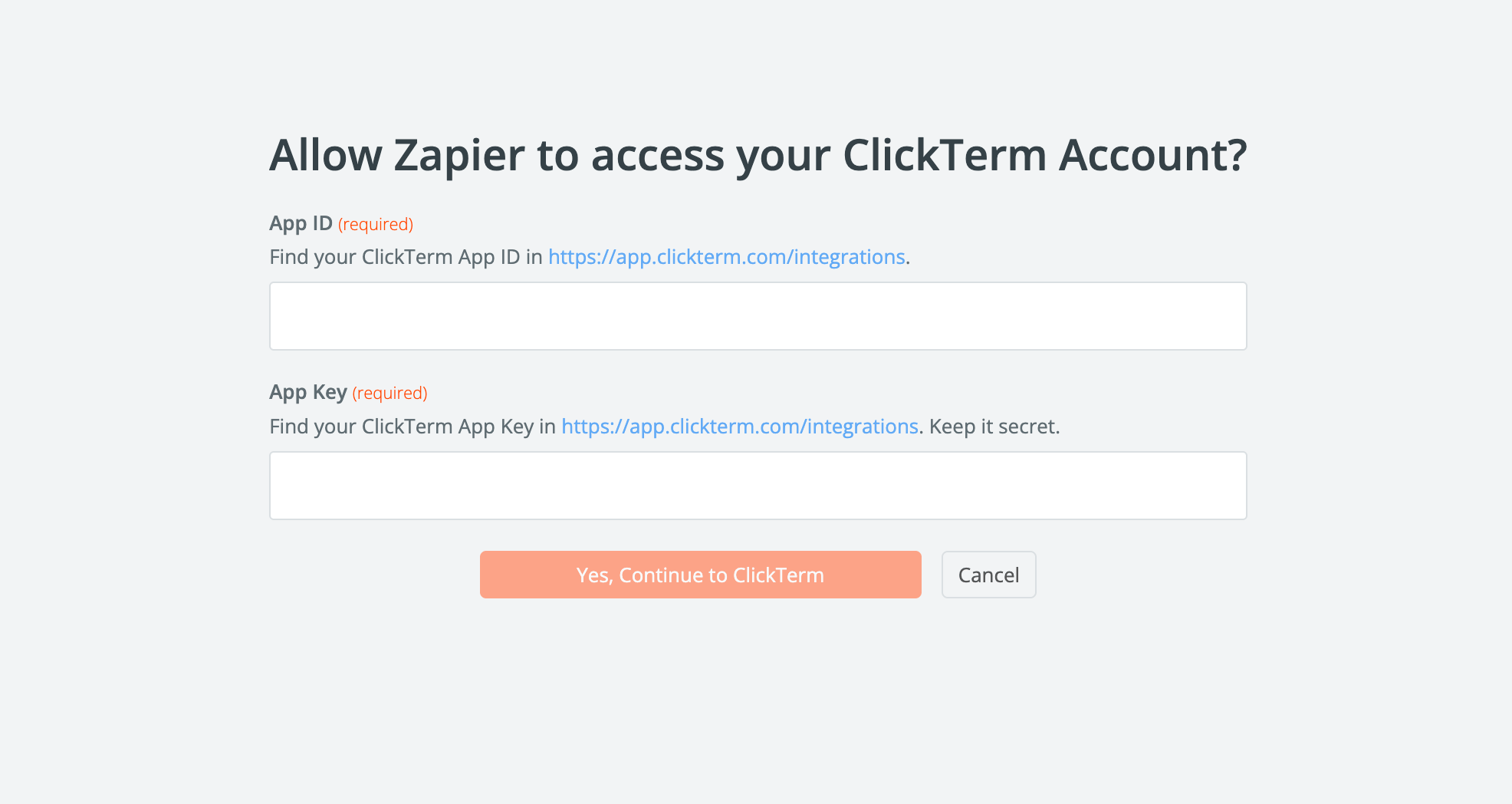
The Zapier app is most useful when you don't run a backend. ClickTerm's public API requires your `appKey` to be sent server-side, so it can't be called from a no-code app, a marketing site, or any client-only workflow. The ClickTerm Zapier app solves this by holding your `appId` and `appKey` securely in the Zapier connection and calling the API on your behalf — Zapier becomes your backend.
If you do run a backend, you can call the [public API](/api-reference/overview) directly. Zapier is then optional — useful mainly for orchestrating downstream tools (Slack, Drive, your CRM) without writing extra code.
## What you can do
Combine ClickTerm with any other Zapier app to:
* **Require consent before proceeding** — continue a Zap only when verification returns `ACCEPTED`.
* **Archive signed documents** — store the Agreement PDF or Certificate of Acceptance in Drive, Dropbox, or your DMS for audit and compliance.
* **Notify teams** — post to Slack, email, or your CRM when an agreement is accepted.
* **Branch automations** — route downstream steps based on the verification result.
## Requirements
* A ClickTerm account.
* A ClickTerm App created from the [Integrations page](/product/integrations/integrations-overview).
* Your app credentials:
* `appId`
* `appKey`
* A `clicktermSignature` returned by the SDK when the user accepts or declines. For more details check [Displaying a clickwrap](/dev/guides/displaying-clickwrap).
Never expose your **App Key** in client-side code. The App Key is used
only for backend verification calls. The client SDK uses only the **App ID**.
Store the App Key safely — it won't display again after creation, but can be
regenerated. Regenerating the key requires updating your backend configuration.
## How it works
Your application posts the `clicktermSignature` to a webhook URL created with **Webhooks by Zapier** (the Zap's trigger). Inside the Zap, the **ClickTerm Zapier app** then verifies the Signature using the credentials from your **ClickTerm App** and, optionally, downloads the signed documents.
Your application displays the clickwrap using the SDK. The end user accepts or declines.
The SDK returns a `clicktermSignature` to your application — a signed token capturing the user's response. For more details check [Displaying a clickwrap](/dev/guides/displaying-clickwrap).
Your application posts the `clicktermSignature` to a **Webhooks by Zapier** URL. This is what triggers the Zap.
Add the **ClickTerm Zapier app** as the next step in the Zap. It verifies the Signature using the `appId` and `appKey` from your **ClickTerm App** (created on the [Integrations page](/product/integrations/integrations-overview)). The result includes a status of `ACCEPTED` or `DECLINED`.
ClickTerm provides **actions** (steps that perform work in a Zap), not a **trigger**. Your application sends the verification data into a Zap using **Webhooks by Zapier** as the trigger step; ClickTerm actions then run against that data.
## When to use the Zapier app
The Zapier app is most useful when you don't run a backend. ClickTerm's public API requires your `appKey` to be sent server-side, so it can't be called from a no-code app, a marketing site, or any client-only workflow. The ClickTerm Zapier app solves this by holding your `appId` and `appKey` securely in the Zapier connection and calling the API on your behalf — Zapier becomes your backend.
If you do run a backend, you can call the [public API](/api-reference/overview) directly. Zapier is then optional — useful mainly for orchestrating downstream tools (Slack, Drive, your CRM) without writing extra code.
## What you can do
Combine ClickTerm with any other Zapier app to:
* **Require consent before proceeding** — continue a Zap only when verification returns `ACCEPTED`.
* **Archive signed documents** — store the Agreement PDF or Certificate of Acceptance in Drive, Dropbox, or your DMS for audit and compliance.
* **Notify teams** — post to Slack, email, or your CRM when an agreement is accepted.
* **Branch automations** — route downstream steps based on the verification result.
## Requirements
* A ClickTerm account.
* A ClickTerm App created from the [Integrations page](/product/integrations/integrations-overview).
* Your app credentials:
* `appId`
* `appKey`
* A `clicktermSignature` returned by the SDK when the user accepts or declines. For more details check [Displaying a clickwrap](/dev/guides/displaying-clickwrap).
Never expose your **App Key** in client-side code. The App Key is used
only for backend verification calls. The client SDK uses only the **App ID**.
Store the App Key safely — it won't display again after creation, but can be
regenerated. Regenerating the key requires updating your backend configuration.
## How it works
Your application posts the `clicktermSignature` to a webhook URL created with **Webhooks by Zapier** (the Zap's trigger). Inside the Zap, the **ClickTerm Zapier app** then verifies the Signature using the credentials from your **ClickTerm App** and, optionally, downloads the signed documents.
Your application displays the clickwrap using the SDK. The end user accepts or declines.
The SDK returns a `clicktermSignature` to your application — a signed token capturing the user's response. For more details check [Displaying a clickwrap](/dev/guides/displaying-clickwrap).
Your application posts the `clicktermSignature` to a **Webhooks by Zapier** URL. This is what triggers the Zap.
Add the **ClickTerm Zapier app** as the next step in the Zap. It verifies the Signature using the `appId` and `appKey` from your **ClickTerm App** (created on the [Integrations page](/product/integrations/integrations-overview)). The result includes a status of `ACCEPTED` or `DECLINED`.
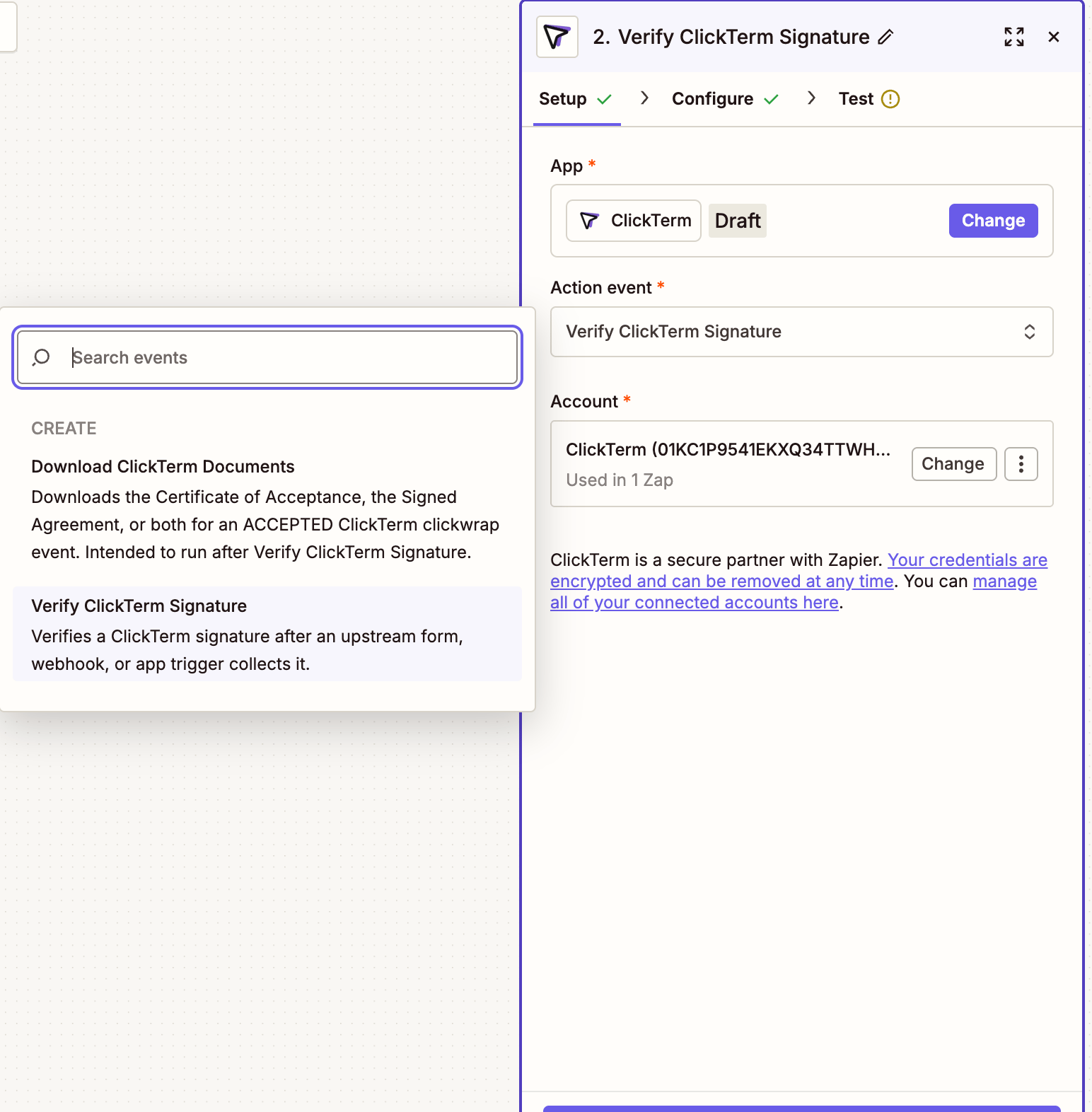
 Use the verified status to continue, branch, or stop the Zap.
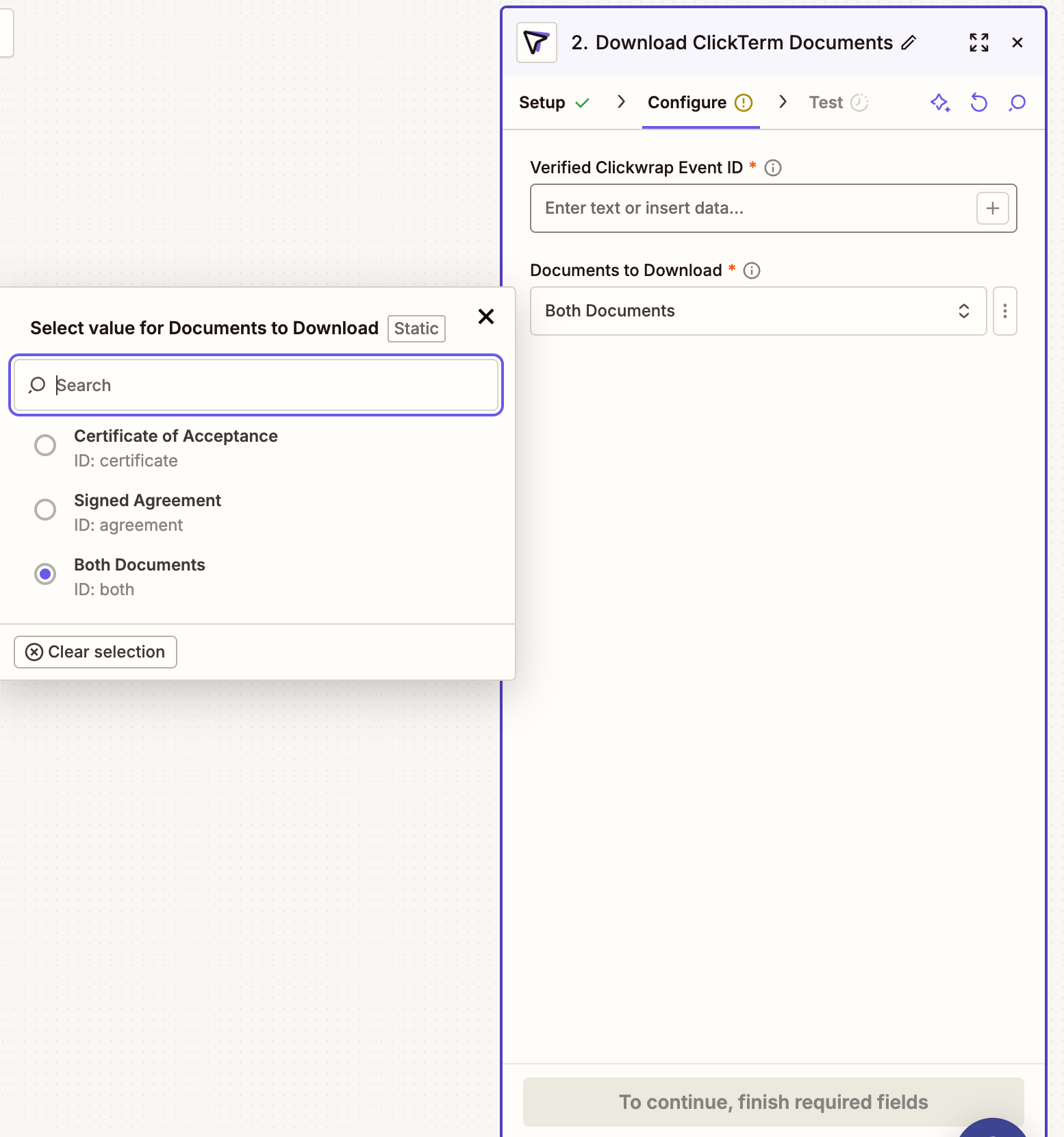
For verified `ACCEPTED` events, the ClickTerm Zapier app can download the Agreement PDF or Certificate of Acceptance, which you can pass to downstream Zap steps (Drive, Slack, your CRM, etc.).
Use the verified status to continue, branch, or stop the Zap.
For verified `ACCEPTED` events, the ClickTerm Zapier app can download the Agreement PDF or Certificate of Acceptance, which you can pass to downstream Zap steps (Drive, Slack, your CRM, etc.).
 ## Zapier Flow Example
 ```mermaid theme={null}
flowchart LR
U[User] --> S[Signature]
S --> Z[Zapier]
Z --> V[Verify]
V --> A{ACCEPTED?}
A -->|Yes| C[Continue]
A -->|No| D[Stop]
```
## Important notes
* Always verify the Signature before using consent.
* Only verified `ACCEPTED` events should trigger downstream workflows.
* Agreement and Certificate downloads require a verified `ACCEPTED` status.
* Never expose `appKey` in frontend or client-side code.
* Both the Agreement PDF and Certificate of Acceptance remain permanently available for download in the ClickTerm UI after a verified `ACCEPTED` event.
## Related
How verification works and what it returns.
Retrieve PDFs after a verified acceptance.
How the SDK, your backend, and ClickTerm fit together.
```mermaid theme={null}
flowchart LR
U[User] --> S[Signature]
S --> Z[Zapier]
Z --> V[Verify]
V --> A{ACCEPTED?}
A -->|Yes| C[Continue]
A -->|No| D[Stop]
```
## Important notes
* Always verify the Signature before using consent.
* Only verified `ACCEPTED` events should trigger downstream workflows.
* Agreement and Certificate downloads require a verified `ACCEPTED` status.
* Never expose `appKey` in frontend or client-side code.
* Both the Agreement PDF and Certificate of Acceptance remain permanently available for download in the ClickTerm UI after a verified `ACCEPTED` event.
## Related
How verification works and what it returns.
Retrieve PDFs after a verified acceptance.
How the SDK, your backend, and ClickTerm fit together.